> ## Documentation Index
> Fetch the complete documentation index at: https://docs.codeant.ai/llms.txt
> Use this file to discover all available pages before exploring further.
# Azure
> Cloud Security Posture Management (CSPM) for Azure
### Overview
Cloud Security Posture Management (CSPM) is the process of securing multi-cloud environments through enhanced visibility, risk and misconfiguration identification, posture assessment, and compliance protocols. CodeAnt AI continuously monitor cloud infrastructure—such as Infrastructure as a Service (IaaS), Platform as a Service (PaaS), and Software as a Service (SaaS)—for gaps in security policy enforcement.
### Key Features
* **Multi-Cloud Support:** Currently supports AWS, GCP and Azure.
* **Seamless Integration:** Connect seamlessly with any cloud provider and continuously monitor for security vulnerabilities, misconfigurations, and compliance issues.
### How It Works
1. **Permissions**
**a. Register an application**
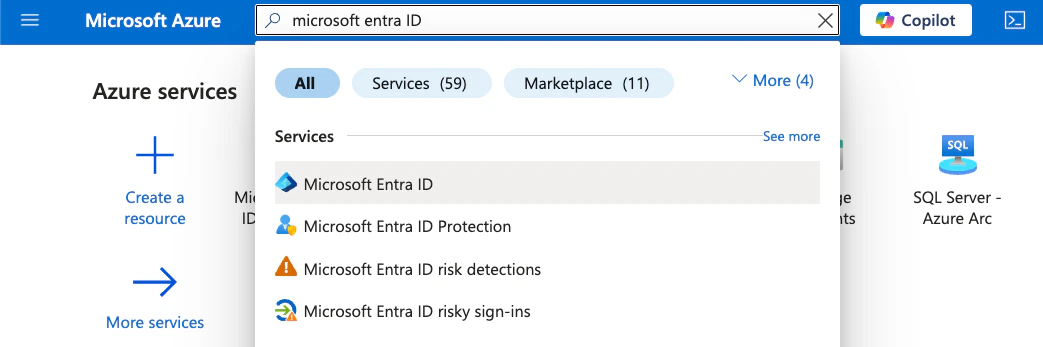
1. Sign in to the [Azure Portal](https://portal.azure.com) and search for **Microsoft Entra ID**.
 2. In the left menu open **Manage → App registrations**.
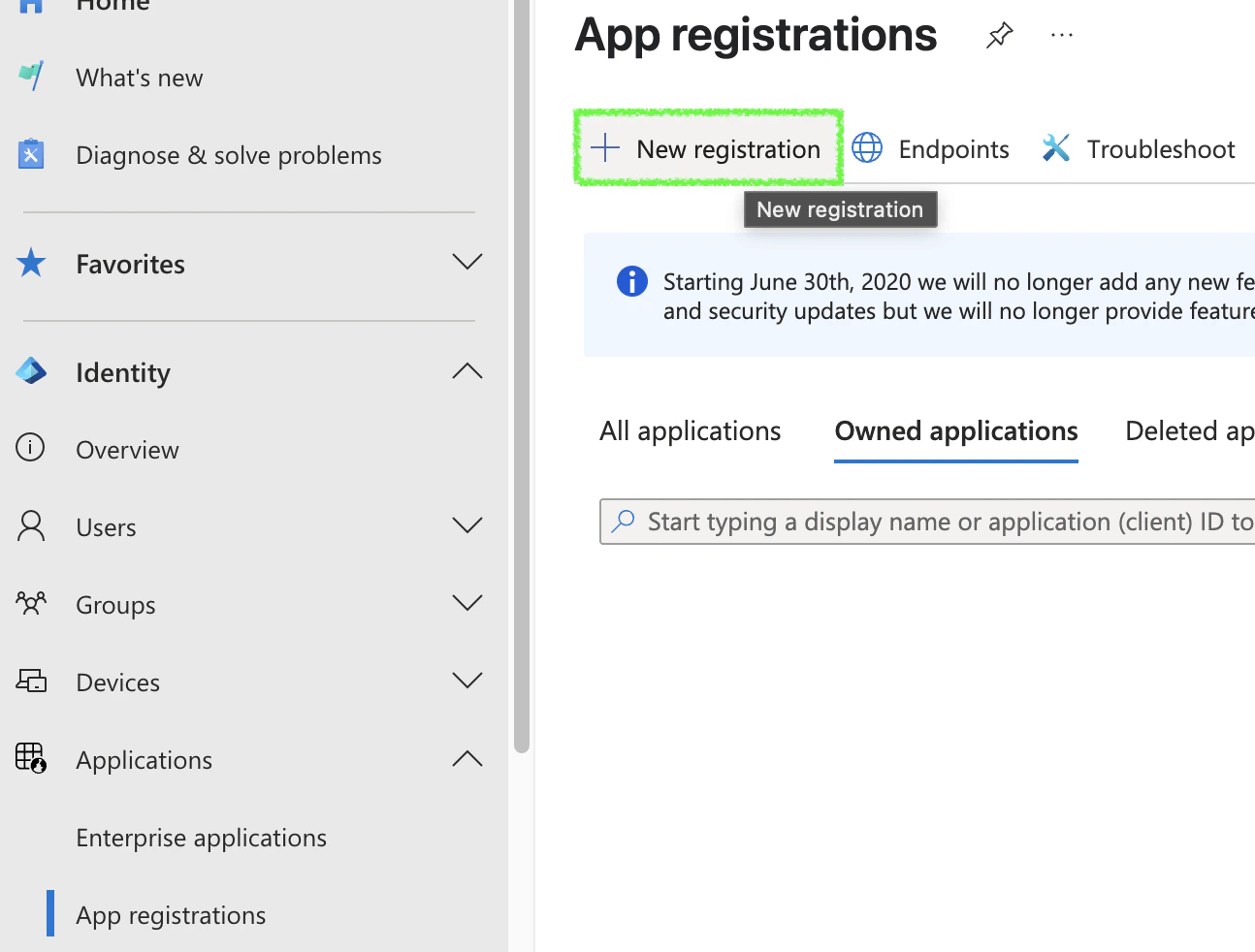 3. Click **+ New registration**, give it a name (e.g. `codeant-cspm`), leave the defaults, and click **Register**.
**b. Create a client secret**
1. From the new app registration open **Certificates & secrets**.
3. Click **+ New registration**, give it a name (e.g. `codeant-cspm`), leave the defaults, and click **Register**.
**b. Create a client secret**
1. From the new app registration open **Certificates & secrets**.
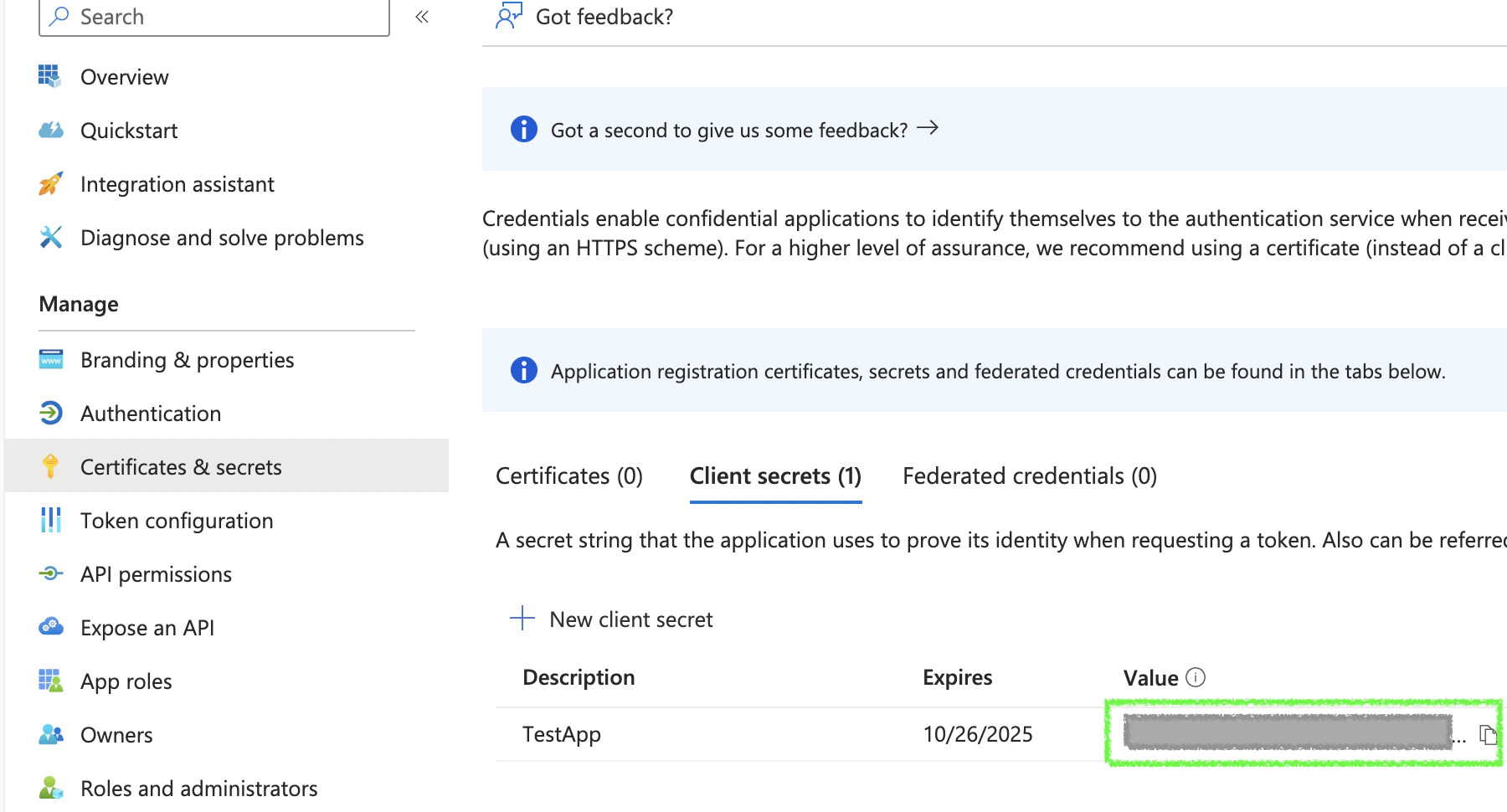
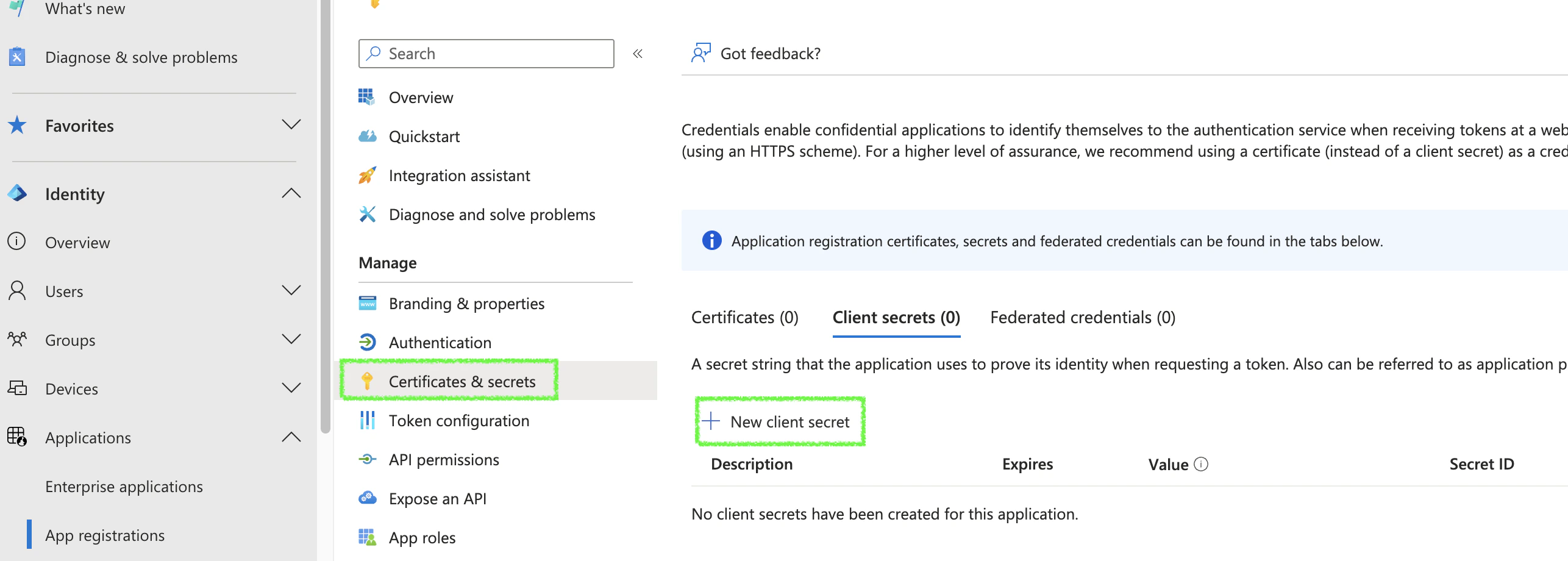 2. Click **+ New client secret**, set an expiry, and click **Add**. Copy the secret **Value** immediately — it is only shown once.
 **c. Grant Microsoft Graph permissions**
1. In the same app registration open **API permissions**.
2. Click **+ Add a permission**, choose **Microsoft Graph**, then **Application permissions**.
**c. Grant Microsoft Graph permissions**
1. In the same app registration open **API permissions**.
2. Click **+ Add a permission**, choose **Microsoft Graph**, then **Application permissions**.
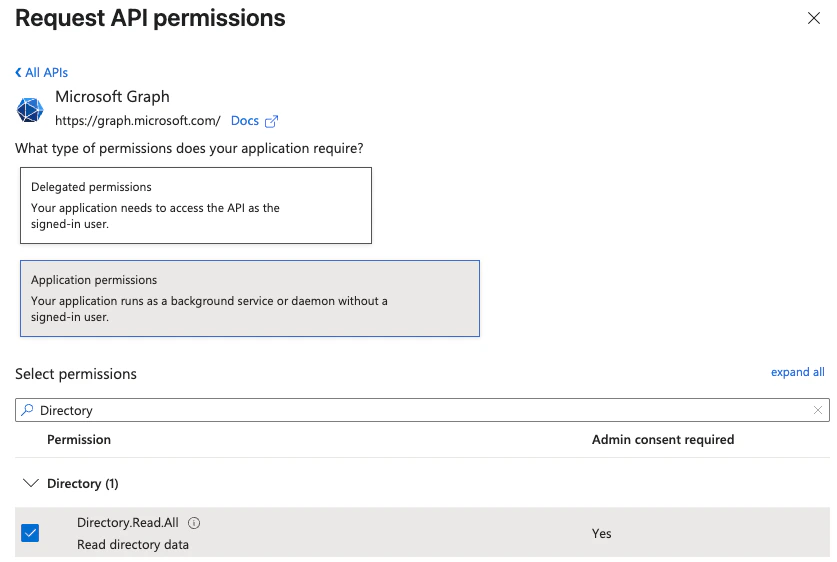
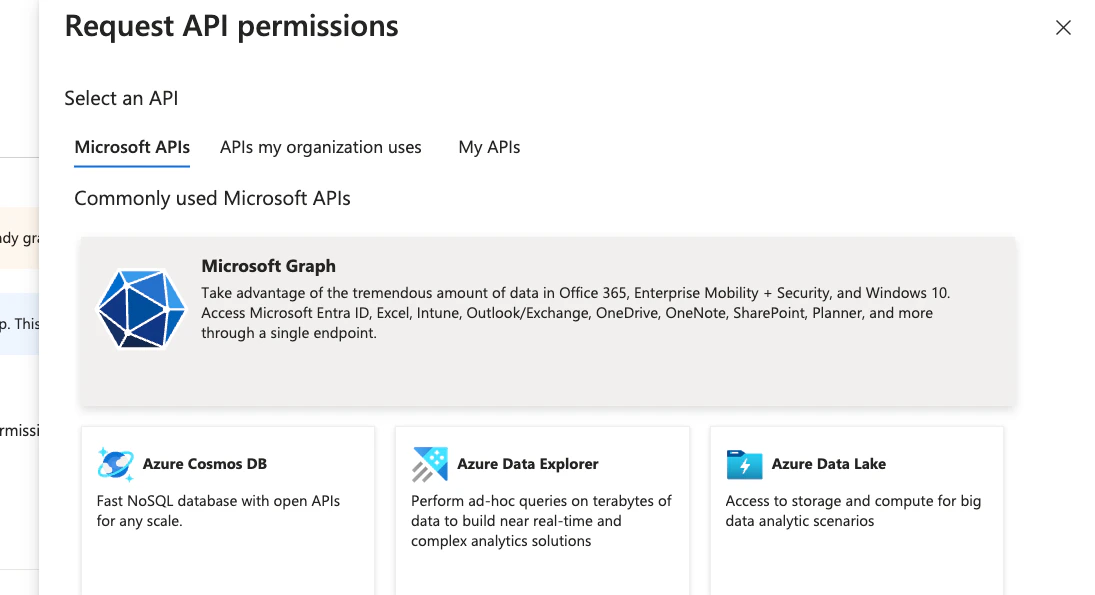 3. Search for and tick: `AuditLog.Read.All`, `Directory.Read.All`, `Policy.Read.All`. Click **Add permissions**.
 4. Click **Grant admin consent for \**, then **Yes**. Each permission's status should turn green.
**d. Assign the Reader role on the subscription**
1. In the Azure Portal top search bar, type **Subscriptions** and click the **Subscriptions** result under *Services*.
2. From the list, click the subscription you want CodeAnt to scan. (If you have many subscriptions, repeat this step for each one.)
3. In the left menu of the subscription blade, click **Access control (IAM)**.
4. Click **+ Add** at the top of the page, then choose **Add role assignment** from the dropdown.
5. On the **Role** tab, search for `Reader`, select the **Reader** row, and click **Next**.
4. Click **Grant admin consent for \**, then **Yes**. Each permission's status should turn green.
**d. Assign the Reader role on the subscription**
1. In the Azure Portal top search bar, type **Subscriptions** and click the **Subscriptions** result under *Services*.
2. From the list, click the subscription you want CodeAnt to scan. (If you have many subscriptions, repeat this step for each one.)
3. In the left menu of the subscription blade, click **Access control (IAM)**.
4. Click **+ Add** at the top of the page, then choose **Add role assignment** from the dropdown.
5. On the **Role** tab, search for `Reader`, select the **Reader** row, and click **Next**.
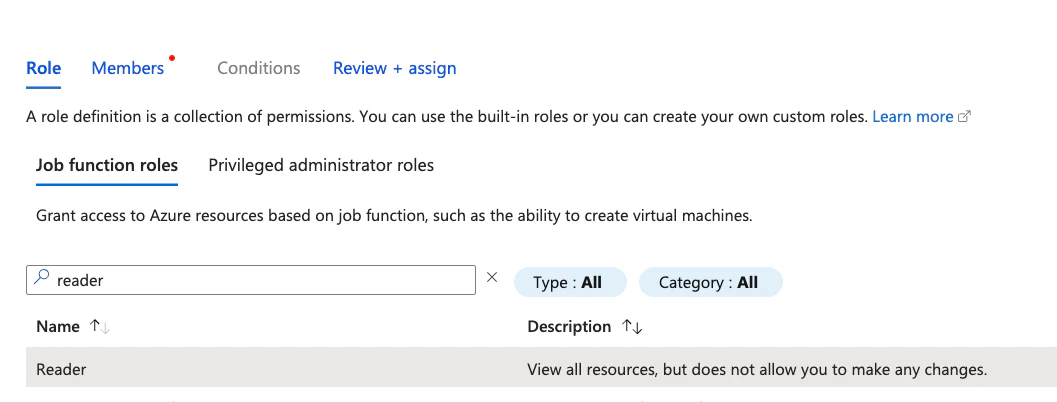 6. On the **Members** tab, leave **Assign access to** as *User, group, or service principal*, then click **+ Select members**.
7. In the **Select members** panel on the right, type `codeant-cspm` (or the exact name you used in step a.3) into the search box, click the matching application in the results, and click **Select** at the bottom.
8. Click **Next** until you reach the **Review + assign** tab, then click **Review + assign** to commit.
**e. Collect the credentials**
From the app registration **Overview** page copy the **Application (client) ID** and **Directory (tenant) ID**. Use these together with the client secret from step b in the next section. (The **Subscription ID**, found on the subscription's **Overview** page, isn't part of the saved credential — it's only used for the optional validation probe in step 2.)
* **Get the tenant ID**
```bash theme={null}
az account show --query tenantId -o tsv
```
* **Get the client (app) ID**
```bash theme={null}
az ad app list --display-name "codeant-cspm" --query "[0].appId" -o tsv
```
* **Create (or reset) a client secret**
```bash theme={null}
az ad app credential reset \
--id YOUR_APP_ID \
--append \
--credential-description "exporter-script" \
--years 1 \
--query password -o tsv
```
* This command outputs the new secret.
* **Get the subscription ID** (the one you want CodeAnt to scan)
```bash theme={null}
az account show --query id -o tsv
```
* **Ensure the SP has Reader rights**
```bash theme={null}
az role assignment create \
--assignee YOUR_APP_ID \
--role Reader \
--scope "/subscriptions/YOUR_SUBSCRIPTION_ID"
```
* **Grant Microsoft Graph application permissions** (`AuditLog.Read.All`, `Directory.Read.All`, `Policy.Read.All`)
```bash theme={null}
GRAPH_APP_ID=00000003-0000-0000-c000-000000000000
az ad app permission add --id YOUR_APP_ID --api $GRAPH_APP_ID \
--api-permissions \
b0afded3-3588-46d8-8b3d-9842eff778da=Role \
7ab1d382-f21e-4acd-a863-ba3e13f7da61=Role \
246dd0d5-5bd0-4def-940b-0421030a5b68=Role
az ad app permission admin-consent --id YOUR_APP_ID
```
* The three GUIDs are the well-known role IDs for `AuditLog.Read.All`, `Directory.Read.All`, and `Policy.Read.All` on Microsoft Graph. Admin consent requires a Global Administrator (or Privileged Role Administrator) signed in.
2. **Settings**
* In the CodeAnt UI navigate to **Settings → Cloud Security → Azure**.
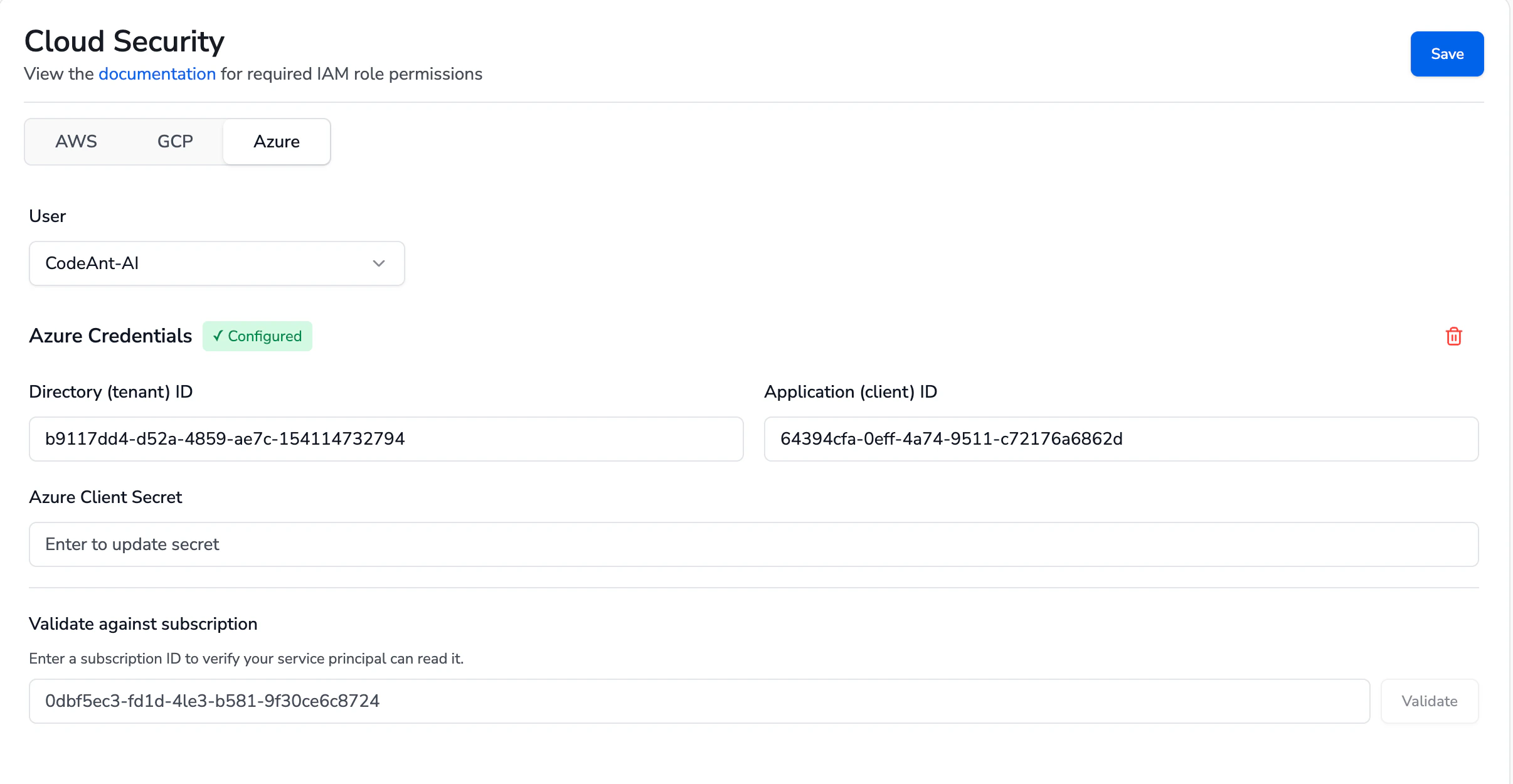
* Under **Azure Credentials**, fill in **Directory (tenant) ID**, **Application (client) ID**, and **Azure Client Secret**, then click **Save** in the top right.
* (Optional) Under **Validate against subscription**, paste a Subscription ID and click **Validate** to confirm the service principal can read that subscription. A green confirmation means the Reader role and Graph permissions are wired up correctly. The Subscription ID is **not** stored — it is only used for this probe.
*
6. On the **Members** tab, leave **Assign access to** as *User, group, or service principal*, then click **+ Select members**.
7. In the **Select members** panel on the right, type `codeant-cspm` (or the exact name you used in step a.3) into the search box, click the matching application in the results, and click **Select** at the bottom.
8. Click **Next** until you reach the **Review + assign** tab, then click **Review + assign** to commit.
**e. Collect the credentials**
From the app registration **Overview** page copy the **Application (client) ID** and **Directory (tenant) ID**. Use these together with the client secret from step b in the next section. (The **Subscription ID**, found on the subscription's **Overview** page, isn't part of the saved credential — it's only used for the optional validation probe in step 2.)
* **Get the tenant ID**
```bash theme={null}
az account show --query tenantId -o tsv
```
* **Get the client (app) ID**
```bash theme={null}
az ad app list --display-name "codeant-cspm" --query "[0].appId" -o tsv
```
* **Create (or reset) a client secret**
```bash theme={null}
az ad app credential reset \
--id YOUR_APP_ID \
--append \
--credential-description "exporter-script" \
--years 1 \
--query password -o tsv
```
* This command outputs the new secret.
* **Get the subscription ID** (the one you want CodeAnt to scan)
```bash theme={null}
az account show --query id -o tsv
```
* **Ensure the SP has Reader rights**
```bash theme={null}
az role assignment create \
--assignee YOUR_APP_ID \
--role Reader \
--scope "/subscriptions/YOUR_SUBSCRIPTION_ID"
```
* **Grant Microsoft Graph application permissions** (`AuditLog.Read.All`, `Directory.Read.All`, `Policy.Read.All`)
```bash theme={null}
GRAPH_APP_ID=00000003-0000-0000-c000-000000000000
az ad app permission add --id YOUR_APP_ID --api $GRAPH_APP_ID \
--api-permissions \
b0afded3-3588-46d8-8b3d-9842eff778da=Role \
7ab1d382-f21e-4acd-a863-ba3e13f7da61=Role \
246dd0d5-5bd0-4def-940b-0421030a5b68=Role
az ad app permission admin-consent --id YOUR_APP_ID
```
* The three GUIDs are the well-known role IDs for `AuditLog.Read.All`, `Directory.Read.All`, and `Policy.Read.All` on Microsoft Graph. Admin consent requires a Global Administrator (or Privileged Role Administrator) signed in.
2. **Settings**
* In the CodeAnt UI navigate to **Settings → Cloud Security → Azure**.
* Under **Azure Credentials**, fill in **Directory (tenant) ID**, **Application (client) ID**, and **Azure Client Secret**, then click **Save** in the top right.
* (Optional) Under **Validate against subscription**, paste a Subscription ID and click **Validate** to confirm the service principal can read that subscription. A green confirmation means the Reader role and Graph permissions are wired up correctly. The Subscription ID is **not** stored — it is only used for this probe.
*  3. **Start a Scan**
* Go to **Cloud Security -> Start a New Scan** and pick your Azure connection.
* Within 15-20 minutes, the scan will be completed, and you will see the results.
### Demo
For a detailed use case and step-by-step guide on how to utilize the cloud security feature, check out our demo. The demo provides a comprehensive walkthrough, showing you how to configure settings, start a scan, and interpret the results effectively.
3. **Start a Scan**
* Go to **Cloud Security -> Start a New Scan** and pick your Azure connection.
* Within 15-20 minutes, the scan will be completed, and you will see the results.
### Demo
For a detailed use case and step-by-step guide on how to utilize the cloud security feature, check out our demo. The demo provides a comprehensive walkthrough, showing you how to configure settings, start a scan, and interpret the results effectively.