> ## Documentation Index
> Fetch the complete documentation index at: https://docs.codeant.ai/llms.txt
> Use this file to discover all available pages before exploring further.
# GCP
> Connect GCP to CodeAnt for Cloud Security Posture Management (CSPM)
### GCP Authentication
CodeAnt's GCP scanner needs read-only access to the project you want to scan. The recommended way to grant that access is a dedicated **service account** with a minimal set of roles plus a small custom role for one extra permission the predefined roles don't cover.
At a glance, the service account needs:
| Role | Why it is needed |
| ----------------------------------------- | ------------------------------------------------------------------------------------------------------------------------- |
| `roles/viewer` | Read project metadata and most resource configurations. |
| `roles/serviceusage.serviceUsageConsumer` | Inspect which APIs/services are enabled on the project. |
| `CodeAntRole` (custom) | Adds `storage.buckets.getIamPolicy`, which is required to evaluate bucket-level IAM and is not granted by `roles/viewer`. |
You'll then download a JSON key for the service account and paste it into CodeAnt.
The service account scans the GCP project tied to the credentials. If you want to scan multiple projects, repeat the setup in each project, or attach the same service account at the folder / organization level with the same roles.
#### 1. Create the custom `CodeAntRole`
The custom role exists only to add a single granular permission that `roles/viewer` does not include.
1. In the Google Cloud Console go to **IAM & Admin → Roles** and click **+ Create role**.
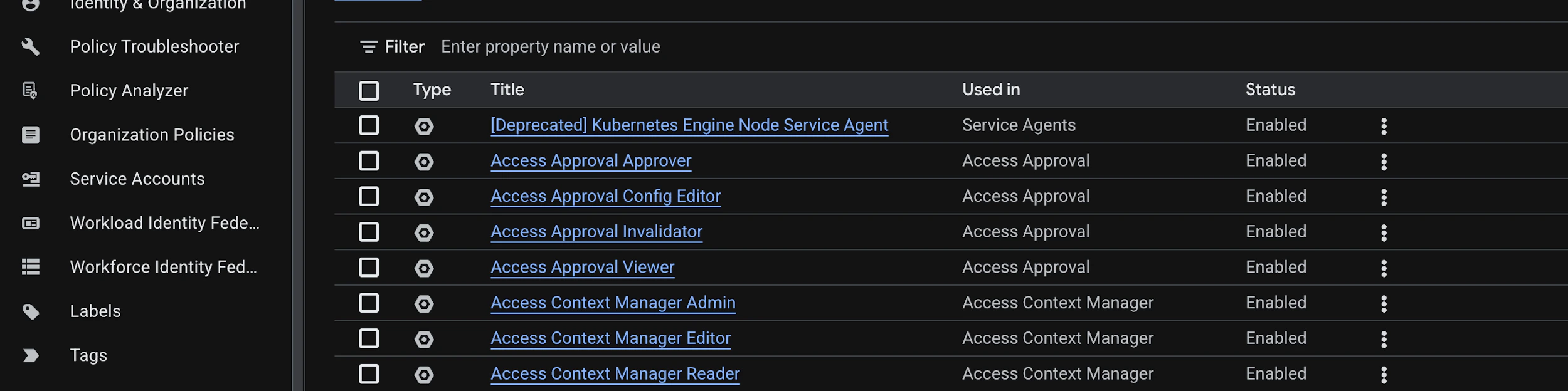 2. Fill in the role details:
* **Title:** `CodeAntRole`
* **ID:** `codeant_role`
* **Description:** `Custom role used by CodeAnt CSPM to read bucket IAM policies.`
* **Role launch stage:** `General Availability`
3. Click **+ Add permissions**, filter the picker by role **Storage Admin**, find `storage.buckets.getIamPolicy`, tick it, and click **Add**.
2. Fill in the role details:
* **Title:** `CodeAntRole`
* **ID:** `codeant_role`
* **Description:** `Custom role used by CodeAnt CSPM to read bucket IAM policies.`
* **Role launch stage:** `General Availability`
3. Click **+ Add permissions**, filter the picker by role **Storage Admin**, find `storage.buckets.getIamPolicy`, tick it, and click **Add**.
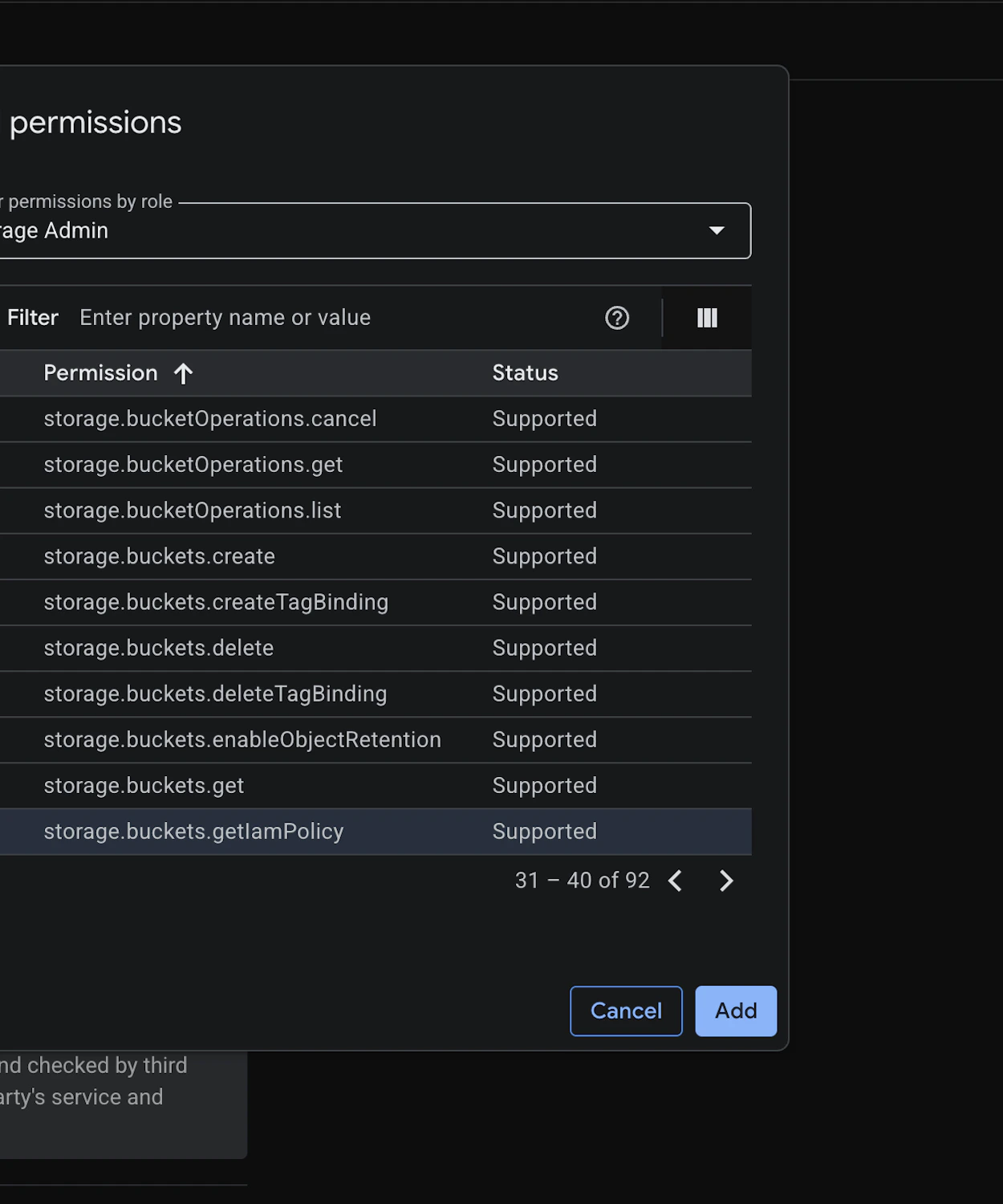 4. Click **Create** to save the role.
Prefer `gcloud`? You can create the same role from your terminal:
```bash theme={null}
PROJECT_ID=
gcloud iam roles create codeant_role --project $PROJECT_ID \
--title="CodeAntRole" \
--description="Custom role used by CodeAnt CSPM to read bucket IAM policies." \
--permissions="storage.buckets.getIamPolicy" \
--stage=GA
```
#### 2. Create the service account
1. Navigate to **IAM & Admin → Service Accounts** and click **+ Create service account**.
4. Click **Create** to save the role.
Prefer `gcloud`? You can create the same role from your terminal:
```bash theme={null}
PROJECT_ID=
gcloud iam roles create codeant_role --project $PROJECT_ID \
--title="CodeAntRole" \
--description="Custom role used by CodeAnt CSPM to read bucket IAM policies." \
--permissions="storage.buckets.getIamPolicy" \
--stage=GA
```
#### 2. Create the service account
1. Navigate to **IAM & Admin → Service Accounts** and click **+ Create service account**.
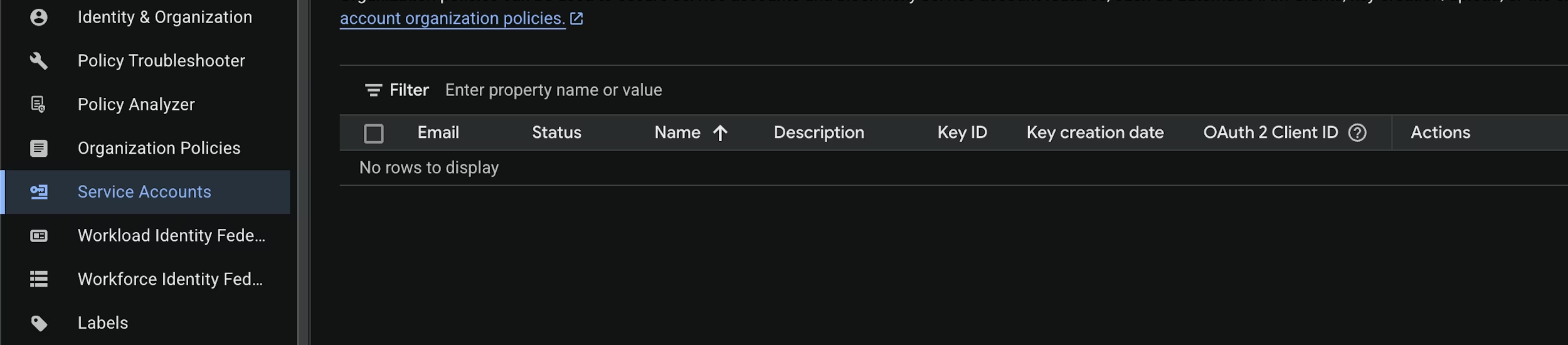 2. Use these details:
* **Service account name:** `codeant-cspm`
* **Service account ID:** `codeant-cspm` (the email becomes `codeant-cspm@.iam.gserviceaccount.com`)
* **Description:** `Service account used by CodeAnt CSPM to scan this project.`
3. Click **Create and continue** to move to the permissions step.
#### 3. Grant the roles
On the **Permissions (optional)** step, attach all three roles to the service account:
* `CodeAntRole`
* `Viewer`
* `Service Usage Consumer`
2. Use these details:
* **Service account name:** `codeant-cspm`
* **Service account ID:** `codeant-cspm` (the email becomes `codeant-cspm@.iam.gserviceaccount.com`)
* **Description:** `Service account used by CodeAnt CSPM to scan this project.`
3. Click **Create and continue** to move to the permissions step.
#### 3. Grant the roles
On the **Permissions (optional)** step, attach all three roles to the service account:
* `CodeAntRole`
* `Viewer`
* `Service Usage Consumer`
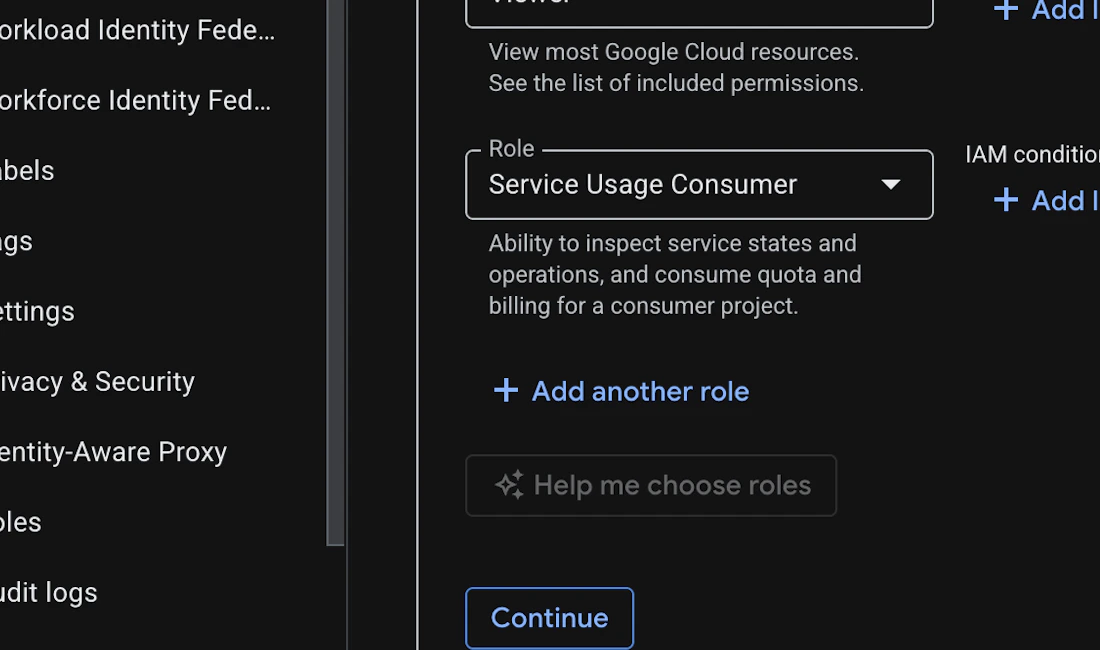 Click **Continue**, then **Done**.
The same bindings via `gcloud`:
```bash theme={null}
PROJECT_ID=
SA=codeant-cspm
SA_EMAIL="${SA}@${PROJECT_ID}.iam.gserviceaccount.com"
gcloud iam service-accounts create $SA --project $PROJECT_ID \
--description="Service account used by CodeAnt CSPM to scan this project." \
--display-name="CodeAnt CSPM"
for ROLE in \
"projects/${PROJECT_ID}/roles/codeant_role" \
"roles/viewer" \
"roles/serviceusage.serviceUsageConsumer"; do
gcloud projects add-iam-policy-binding $PROJECT_ID \
--member="serviceAccount:${SA_EMAIL}" \
--role="$ROLE"
done
```
#### 4. Enable the IAM API and set a quota project
The scanner authenticates against the IAM API and bills quota to the project it scans. From a project that has the IAM API enabled:
```bash theme={null}
PROJECT_ID=
gcloud services enable iam.googleapis.com --project $PROJECT_ID
gcloud auth application-default set-quota-project $PROJECT_ID
```
If you prefer not to set a default quota project, set the `GOOGLE_CLOUD_QUOTA_PROJECT` environment variable instead when running tooling locally.
#### 5. Generate a JSON key
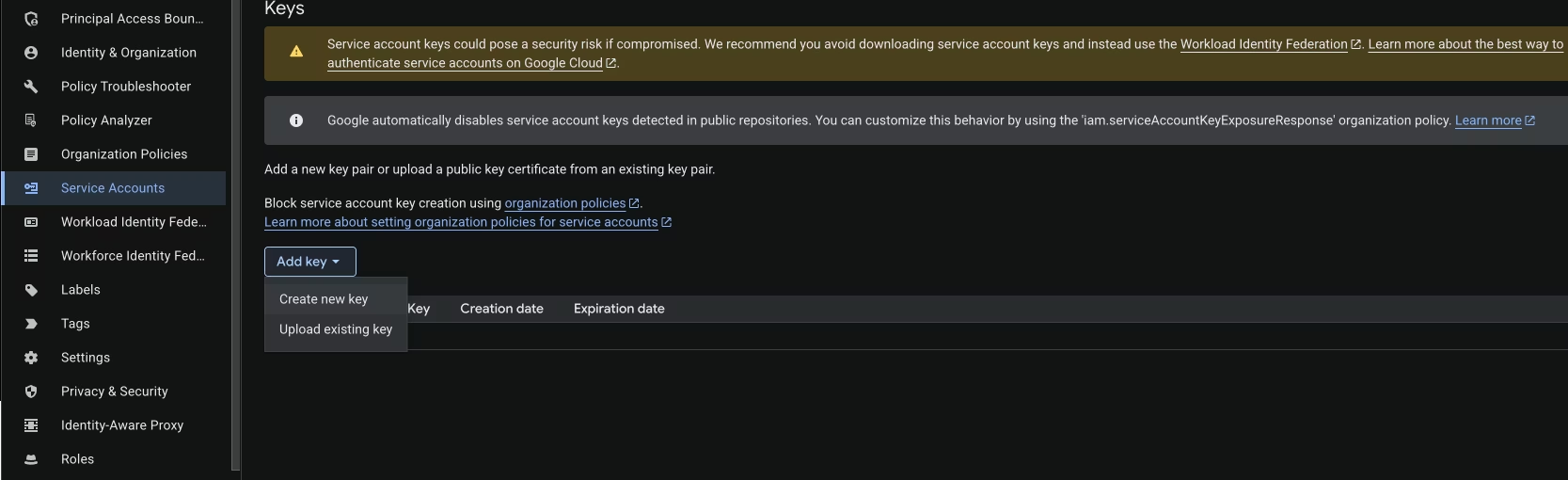
1. Open the service account you just created, switch to the **Keys** tab, click **Add key → Create new key**.
Click **Continue**, then **Done**.
The same bindings via `gcloud`:
```bash theme={null}
PROJECT_ID=
SA=codeant-cspm
SA_EMAIL="${SA}@${PROJECT_ID}.iam.gserviceaccount.com"
gcloud iam service-accounts create $SA --project $PROJECT_ID \
--description="Service account used by CodeAnt CSPM to scan this project." \
--display-name="CodeAnt CSPM"
for ROLE in \
"projects/${PROJECT_ID}/roles/codeant_role" \
"roles/viewer" \
"roles/serviceusage.serviceUsageConsumer"; do
gcloud projects add-iam-policy-binding $PROJECT_ID \
--member="serviceAccount:${SA_EMAIL}" \
--role="$ROLE"
done
```
#### 4. Enable the IAM API and set a quota project
The scanner authenticates against the IAM API and bills quota to the project it scans. From a project that has the IAM API enabled:
```bash theme={null}
PROJECT_ID=
gcloud services enable iam.googleapis.com --project $PROJECT_ID
gcloud auth application-default set-quota-project $PROJECT_ID
```
If you prefer not to set a default quota project, set the `GOOGLE_CLOUD_QUOTA_PROJECT` environment variable instead when running tooling locally.
#### 5. Generate a JSON key
1. Open the service account you just created, switch to the **Keys** tab, click **Add key → Create new key**.
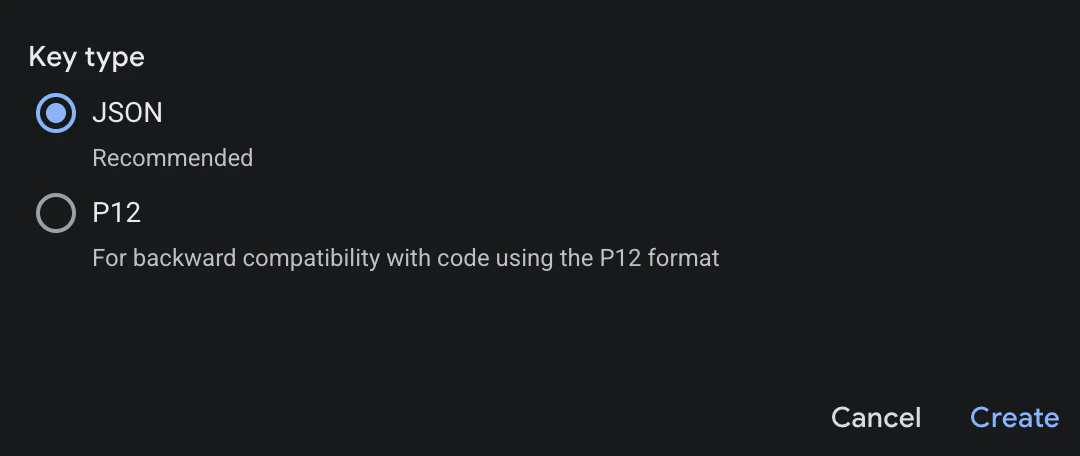
 2. Choose **JSON** and click **Create**. The key file is downloaded to your machine - store it somewhere safe; it can't be re-downloaded.
 Via `gcloud`:
```bash theme={null}
PROJECT_ID=
SA_EMAIL="codeant-cspm@${PROJECT_ID}.iam.gserviceaccount.com"
gcloud iam service-accounts keys create ./codeant-cspm.json \
--iam-account="${SA_EMAIL}"
```
The JSON key grants full access as the service account. Treat it like a password: never commit it to source control, and rotate or delete it when it's no longer needed.
### Connect GCP to CodeAnt
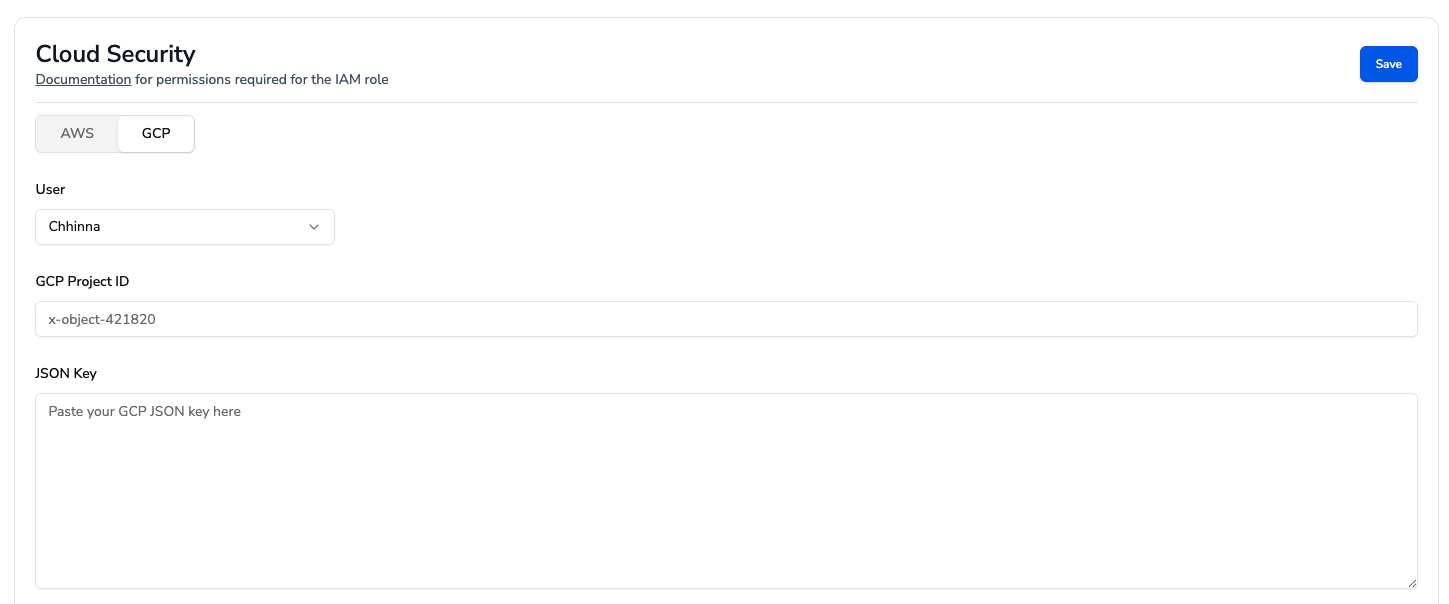
1. In the CodeAnt UI, navigate to **Settings → Cloud Security Settings → GCP**.
2. Enter the **Project ID**, paste the contents of the JSON key, and click **Save**.
Via `gcloud`:
```bash theme={null}
PROJECT_ID=
SA_EMAIL="codeant-cspm@${PROJECT_ID}.iam.gserviceaccount.com"
gcloud iam service-accounts keys create ./codeant-cspm.json \
--iam-account="${SA_EMAIL}"
```
The JSON key grants full access as the service account. Treat it like a password: never commit it to source control, and rotate or delete it when it's no longer needed.
### Connect GCP to CodeAnt
1. In the CodeAnt UI, navigate to **Settings → Cloud Security Settings → GCP**.
2. Enter the **Project ID**, paste the contents of the JSON key, and click **Save**.
 ### Start a Scan
* Go to **Cloud Security → Start a New Scan** and pick your GCP connection.
* Scans typically complete within 15–20 minutes, after which findings appear in the dashboard.
Agentless VM Scanning is **not supported for GCP**. See [VM Scanning](/cloud_security/vm-scanning) for the providers it currently covers.
### Start a Scan
* Go to **Cloud Security → Start a New Scan** and pick your GCP connection.
* Scans typically complete within 15–20 minutes, after which findings appear in the dashboard.
Agentless VM Scanning is **not supported for GCP**. See [VM Scanning](/cloud_security/vm-scanning) for the providers it currently covers.