> ## Documentation Index
> Fetch the complete documentation index at: https://docs.codeant.ai/llms.txt
> Use this file to discover all available pages before exploring further.
# Slack Integration
> Connect your CodeAnt AI workspace to Slack for sprint report notifications
Connect your organization's Slack workspace to CodeAnt AI and get sprint reports delivered directly to the channels your team already uses.
***
## How It Works
### 1. Connect Slack
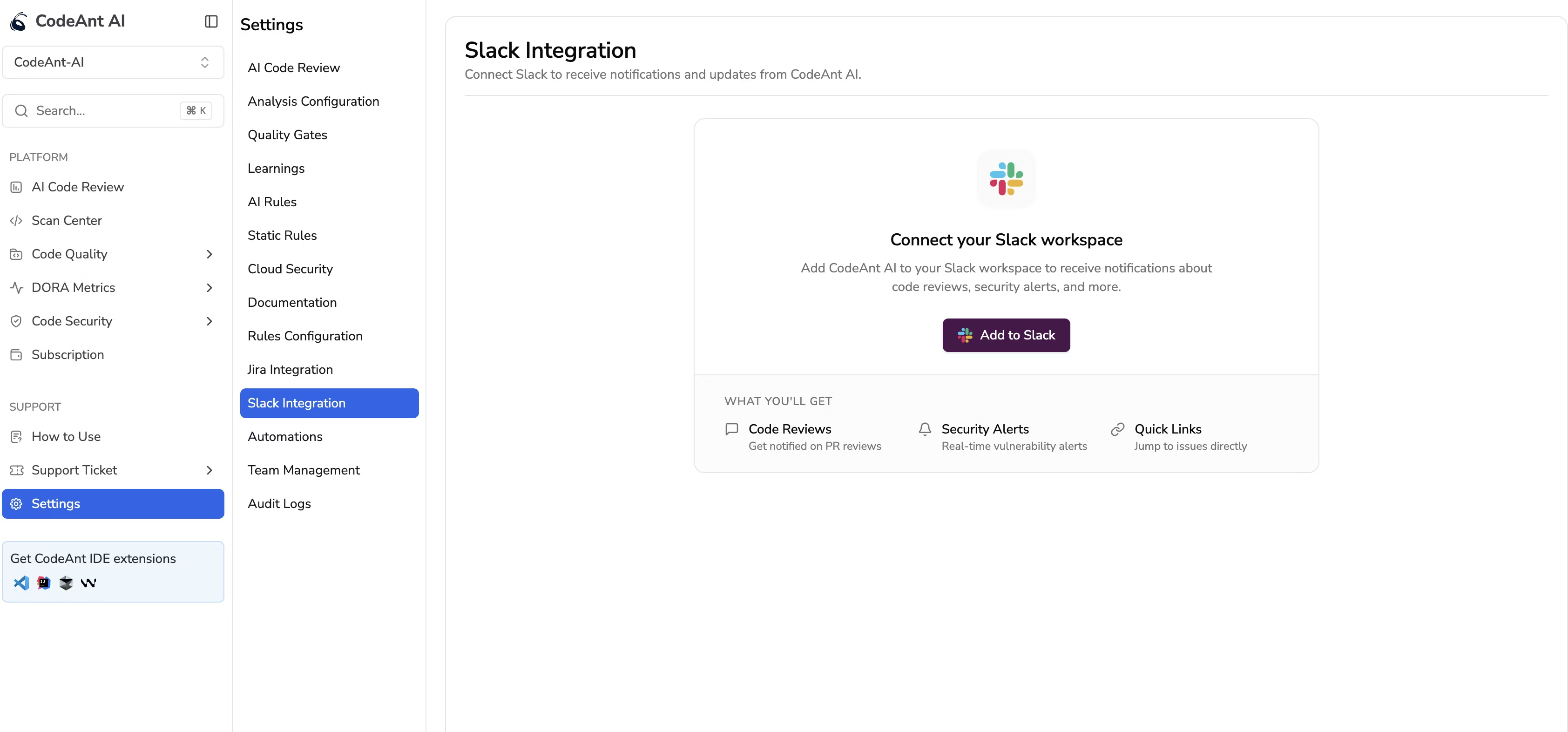
* Navigate to **Settings > Slack Integration** in the CodeAnt AI dashboard.
* Click **Add to Slack** - you'll be redirected to Slack's authorization screen.
* Review the permissions and click **Allow**.
* Once authorized, you'll be redirected back to the **Settings > Slack Integration** page in CodeAnt AI. The connection is now active, and your connected workspace name will be displayed.
 ### 2. Configure Sprint Reports with Slack
When creating or editing a sprint report (under **Settings > Automations > Sprint Reports**), you can enable Slack delivery in the notification settings:
* Enable **Send report to Slack** to send sprint summaries to Slack automatically.
* Select which Slack channels should receive the report - **multiple channels** are supported.
* Both **public** and **private** channels are available for selection, with a search filter to find channels quickly.
* You can update the channel selection at any time by editing the sprint report config.
* At least one notification method (email recipients or Slack channel) is required for every sprint report.
### 2. Configure Sprint Reports with Slack
When creating or editing a sprint report (under **Settings > Automations > Sprint Reports**), you can enable Slack delivery in the notification settings:
* Enable **Send report to Slack** to send sprint summaries to Slack automatically.
* Select which Slack channels should receive the report - **multiple channels** are supported.
* Both **public** and **private** channels are available for selection, with a search filter to find channels quickly.
* You can update the channel selection at any time by editing the sprint report config.
* At least one notification method (email recipients or Slack channel) is required for every sprint report.
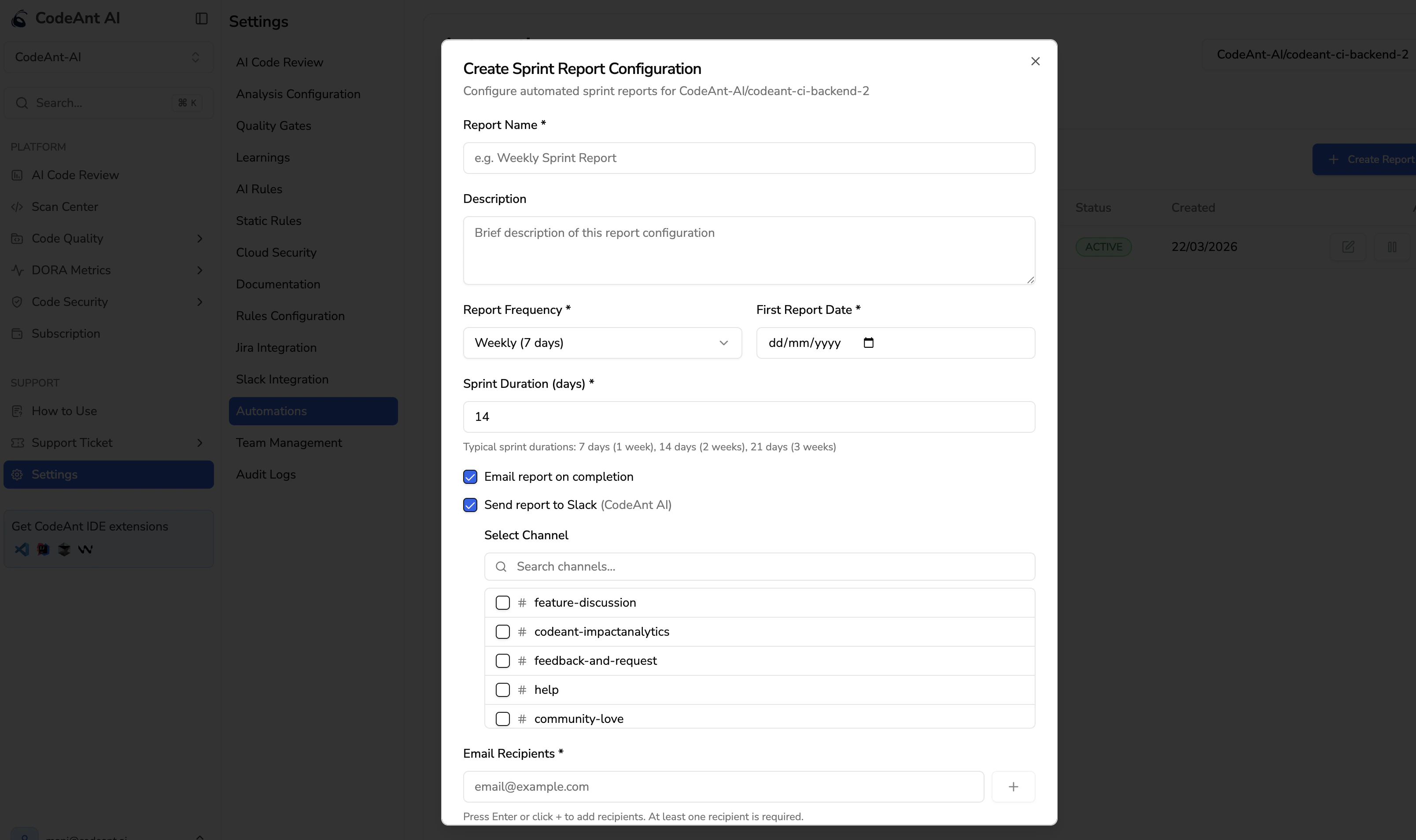 After selecting a channel, you must invite the CodeAnt AI app to that channel for messages to be delivered. In Slack, open the channel and type `/invite @CodeAnt AI`.
### 3. Receive Sprint Reports
Once a sprint summary is generated, CodeAnt AI automatically sends it to the Slack channels configured in that sprint report. The report includes:
* Sprint summary with code health trends across your repositories
* Rich formatting with headers, lists, and highlighted metrics
* Delivery to all configured channels simultaneously
***
## Permissions Requested
| Permission | Why |
| ------------- | ------------------------------------------------------------- |
| Send messages | To post sprint report notifications to your selected channels |
| View channels | To let you pick which channels receive notifications |
CodeAnt AI does **not** read your messages, access files, or modify your Slack workspace in any way.
***
## Security
* The connection uses Slack's official OAuth 2.0 flow with cryptographically signed state parameters, ensuring the authorization process cannot be tampered with.
* Credentials are encrypted at rest and in transit.
* To disconnect Slack, contact [support@codeant.ai](mailto:support@codeant.ai). Self-service disconnect is coming soon.
***
## FAQ
Yes. Select as many channels as you like when configuring your sprint report. Selected channels appear as badges that can be individually removed.
You need permission to install apps in your Slack workspace. Check with your Slack admin if you're unsure.
Currently, sprint reports are sent to Slack when enabled. More notification types are on the roadmap.
Yes. You can enable both email recipients and Slack channels on a single sprint report configuration. At least one notification method is required.
You'll see a prompt to connect Slack from the sprint report configuration modal, with a link to the Slack Integration settings page.
After selecting a channel, you must invite the CodeAnt AI app to that channel for messages to be delivered. In Slack, open the channel and type `/invite @CodeAnt AI`.
### 3. Receive Sprint Reports
Once a sprint summary is generated, CodeAnt AI automatically sends it to the Slack channels configured in that sprint report. The report includes:
* Sprint summary with code health trends across your repositories
* Rich formatting with headers, lists, and highlighted metrics
* Delivery to all configured channels simultaneously
***
## Permissions Requested
| Permission | Why |
| ------------- | ------------------------------------------------------------- |
| Send messages | To post sprint report notifications to your selected channels |
| View channels | To let you pick which channels receive notifications |
CodeAnt AI does **not** read your messages, access files, or modify your Slack workspace in any way.
***
## Security
* The connection uses Slack's official OAuth 2.0 flow with cryptographically signed state parameters, ensuring the authorization process cannot be tampered with.
* Credentials are encrypted at rest and in transit.
* To disconnect Slack, contact [support@codeant.ai](mailto:support@codeant.ai). Self-service disconnect is coming soon.
***
## FAQ
Yes. Select as many channels as you like when configuring your sprint report. Selected channels appear as badges that can be individually removed.
You need permission to install apps in your Slack workspace. Check with your Slack admin if you're unsure.
Currently, sprint reports are sent to Slack when enabled. More notification types are on the roadmap.
Yes. You can enable both email recipients and Slack channels on a single sprint report configuration. At least one notification method is required.
You'll see a prompt to connect Slack from the sprint report configuration modal, with a link to the Slack Integration settings page.