> ## Documentation Index
> Fetch the complete documentation index at: https://docs.codeant.ai/llms.txt
> Use this file to discover all available pages before exploring further.
# Control Center
> Configure CodeAnt AI control center for Cloud Azure Devops
# Cloud Azure DevOps Configuration (via SSO)
Follow these instructions to configure your cloud Azure DevOps using Single Sign-On (SSO):
* **Access the Cloud Option**
* Visit [app.codeant.ai](https://app.codeant.ai/) and click on sign in with azure devops.
* **Sign In with Azure devops**
* Enter your company email (note: public emails like gmail.com or yahoo.com won't work).
* Retrieve the verification code sent to your email and enter it to complete authentication.
* If the code is not received check (junk or quarantine)
* **Create an Access Token**
* Navigate to the Access Token menu in your azure devops:
* 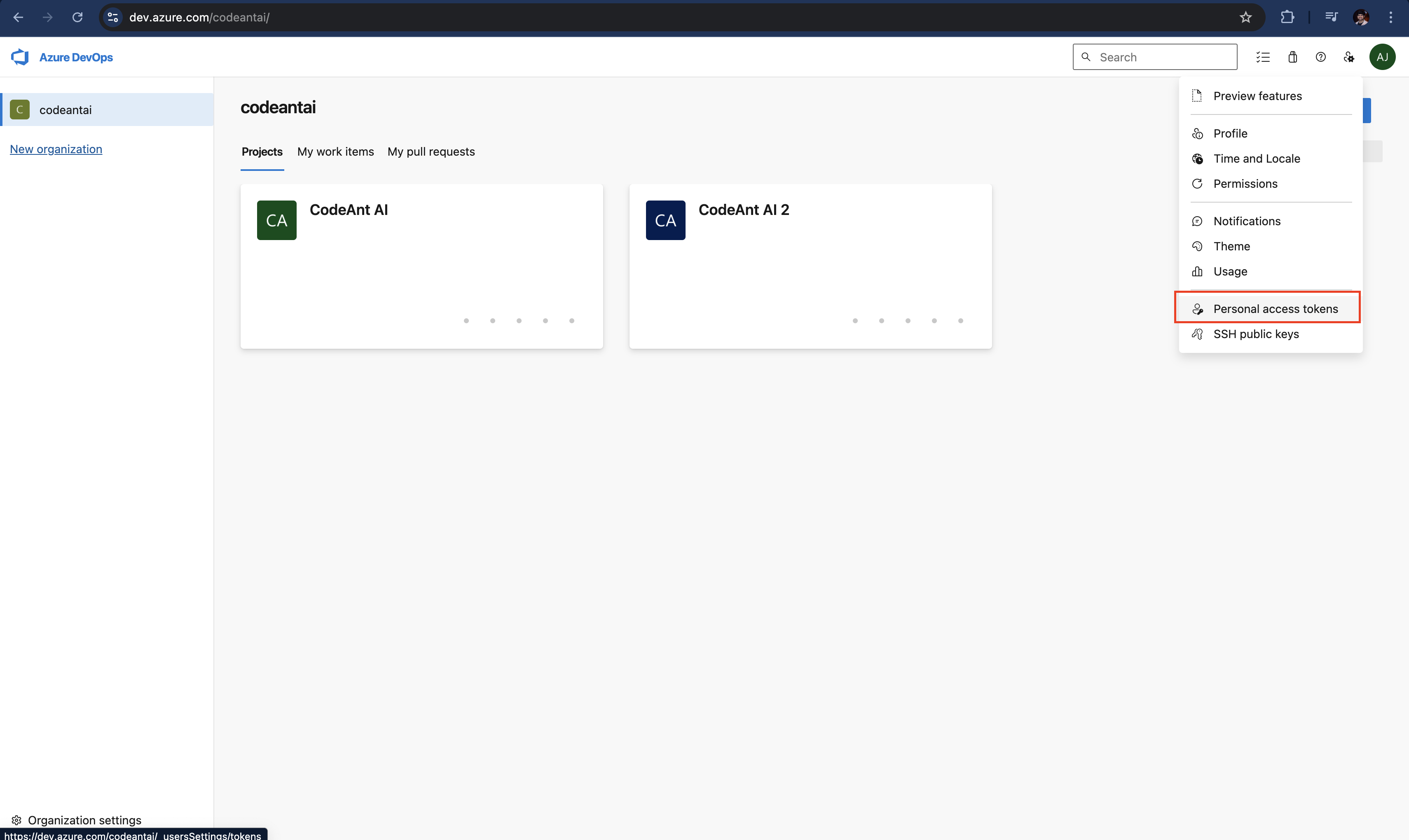 * Click on **+ New Token**.
* Configure the token:
* **Name:** CodeAnt AI
* **Expiry Date:** Choose the maximum duration available (ideally one year).
* **Scopes:**
* Code (Read & Write) - For Code Analysis
* Pull Request Threads (Read & Write) - For PR Review
* Build (Read) - For Dora Metrics
* Work Items (Read) - For Dora Metrics
* Copy the generated token for later use.
* **Provide Your Cloud Azure DevOps Details**
* Enter the base URL of your cloud Azure DevOps instance. This should be the base URL without your organization or `defaultCollection`.
* **Example:** `https://dev.azure.com`
* Specify your organization or collection name as it appears in your repository URL.
* **Example:**\
For the repository URL:
```
https://dev.azure.com/codeantai/CodeAnt%20AI/_git/CodeAnt%20new%20repo
```
* **Base URL:** `https://dev.azure.com`
* **Organization Name:** `codeantai`
* **Provide Your Cloud Azure DevOps Details (Visual Studio Online-style URL)**
* **Enter the base URL:** Always use `https://dev.azure.com` (even if your repo still shows a `*.visualstudio.com` domain).
* **Specify your organization name:** This is the first path segment after the domain in your repo URL.
**Example** – for the repo URL
```
https://codeant.visualstudio.com/CodeAnt%20AI/_git/CodeAnt%20new%20repo
```
* **Base URL:** `https://dev.azure.com`
* **Organization Name:** `codeant`
> **Why?** Microsoft now redirects `*.visualstudio.com/{org}` to `dev.azure.com/{org}`, so you must supply `dev.azure.com` as the base while keeping the same organization name.
* Enter the access token from the above step
* Click on **+ New Token**.
* Configure the token:
* **Name:** CodeAnt AI
* **Expiry Date:** Choose the maximum duration available (ideally one year).
* **Scopes:**
* Code (Read & Write) - For Code Analysis
* Pull Request Threads (Read & Write) - For PR Review
* Build (Read) - For Dora Metrics
* Work Items (Read) - For Dora Metrics
* Copy the generated token for later use.
* **Provide Your Cloud Azure DevOps Details**
* Enter the base URL of your cloud Azure DevOps instance. This should be the base URL without your organization or `defaultCollection`.
* **Example:** `https://dev.azure.com`
* Specify your organization or collection name as it appears in your repository URL.
* **Example:**\
For the repository URL:
```
https://dev.azure.com/codeantai/CodeAnt%20AI/_git/CodeAnt%20new%20repo
```
* **Base URL:** `https://dev.azure.com`
* **Organization Name:** `codeantai`
* **Provide Your Cloud Azure DevOps Details (Visual Studio Online-style URL)**
* **Enter the base URL:** Always use `https://dev.azure.com` (even if your repo still shows a `*.visualstudio.com` domain).
* **Specify your organization name:** This is the first path segment after the domain in your repo URL.
**Example** – for the repo URL
```
https://codeant.visualstudio.com/CodeAnt%20AI/_git/CodeAnt%20new%20repo
```
* **Base URL:** `https://dev.azure.com`
* **Organization Name:** `codeant`
> **Why?** Microsoft now redirects `*.visualstudio.com/{org}` to `dev.azure.com/{org}`, so you must supply `dev.azure.com` as the base while keeping the same organization name.
* Enter the access token from the above step
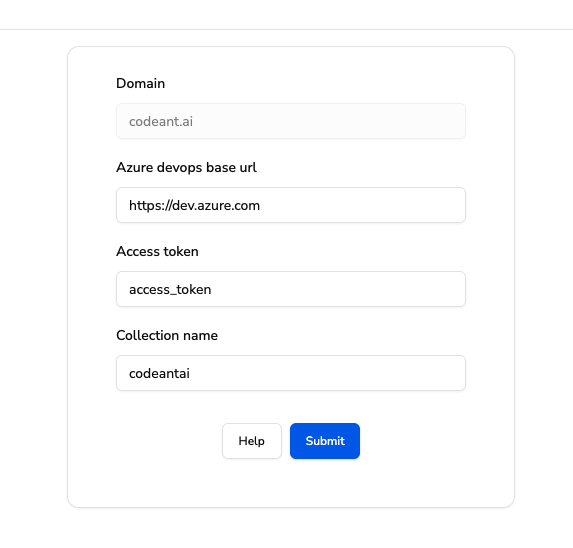 * **Finalize the Setup**
* Review all the entered information and click **Submit**.
* If everything is correct, your projects and repositories will be fetched and displayed.
* **Finalize the Setup**
* Review all the entered information and click **Submit**.
* If everything is correct, your projects and repositories will be fetched and displayed.