

How It Works
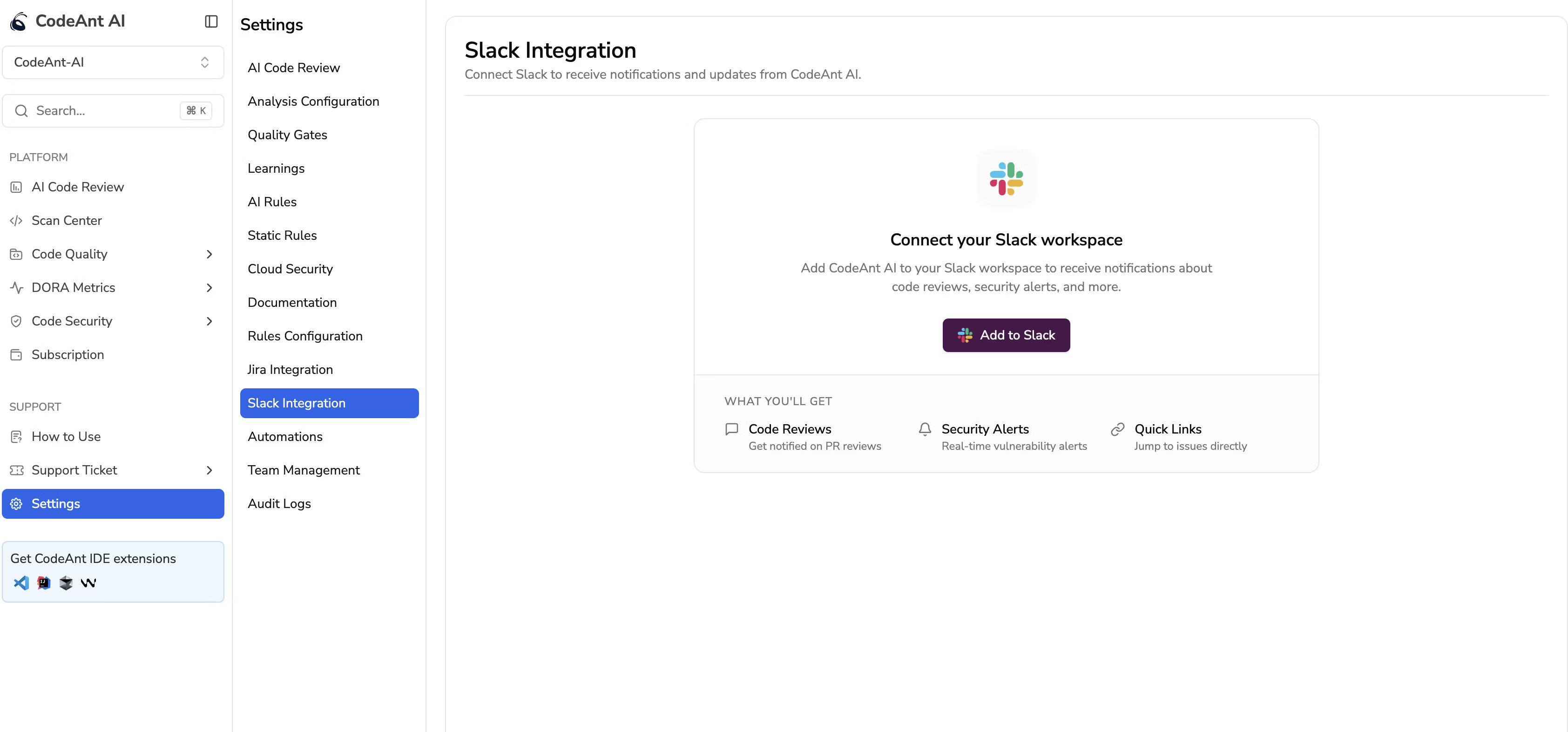
1. Connect Slack
- Navigate to Settings > Slack Integration in the CodeAnt AI dashboard.
- Click Add to Slack - you’ll be redirected to Slack’s authorization screen.
- Review the permissions and click Allow.
- Once authorized, you’ll be redirected back to the Settings > Slack Integration page in CodeAnt AI. The connection is now active, and your connected workspace name will be displayed.
2. Configure Sprint Reports with Slack
When creating or editing a sprint report (under Settings > Automations > Sprint Reports), you can enable Slack delivery in the notification settings:- Enable Send report to Slack to send sprint summaries to Slack automatically.
- Select which Slack channels should receive the report - multiple channels are supported.
- Both public and private channels are available for selection, with a search filter to find channels quickly.
- You can update the channel selection at any time by editing the sprint report config.
- At least one notification method (email recipients or Slack channel) is required for every sprint report.
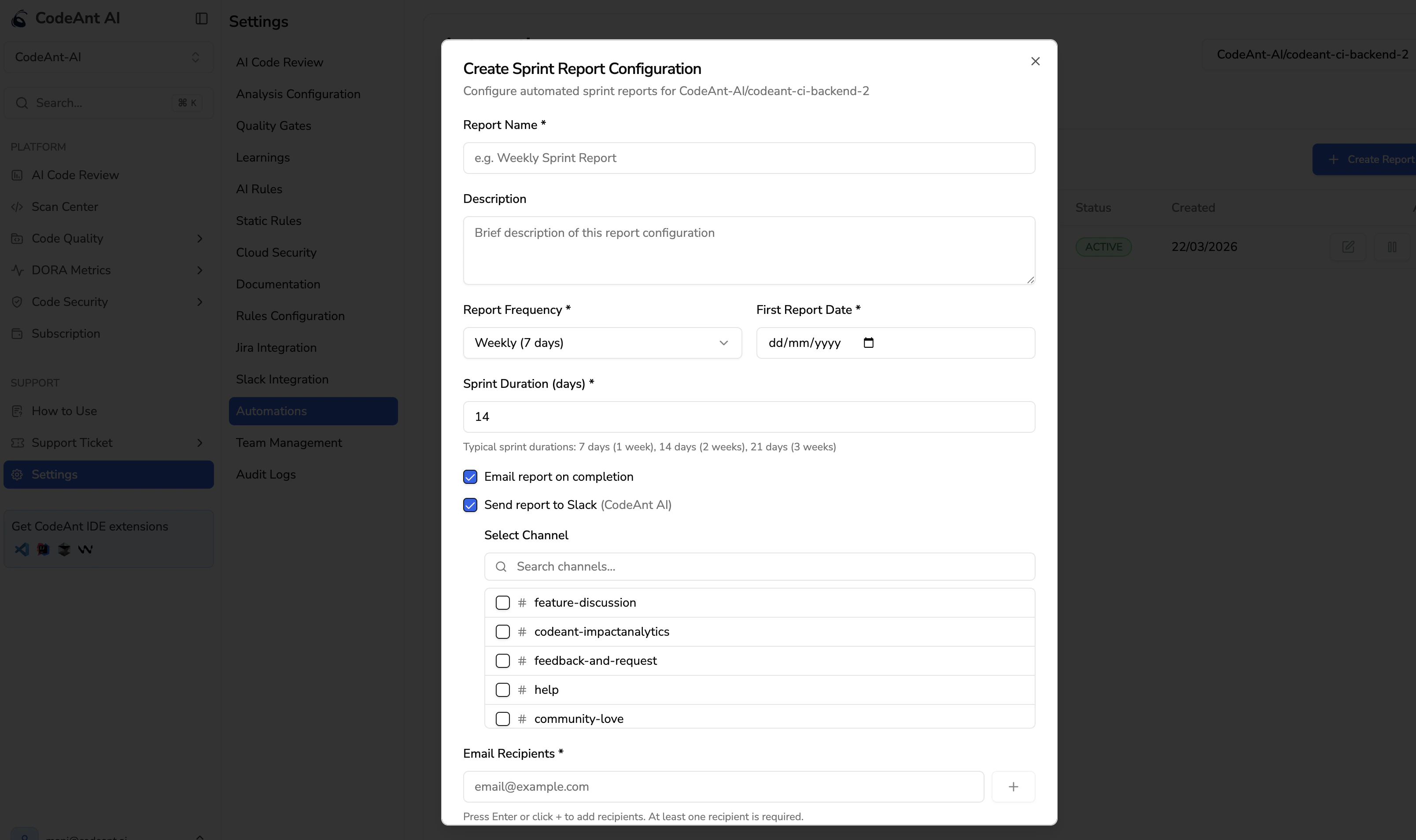
After selecting a channel, you must invite the CodeAnt AI app to that channel for messages to be delivered. In Slack, open the channel and type
/invite @CodeAnt AI.3. Receive Sprint Reports
Once a sprint summary is generated, CodeAnt AI automatically sends it to the Slack channels configured in that sprint report. The report includes:- Sprint summary with code health trends across your repositories
- Rich formatting with headers, lists, and highlighted metrics
- Delivery to all configured channels simultaneously
Permissions Requested
CodeAnt AI does not read your messages, access files, or modify your Slack workspace in any way.
Security
- The connection uses Slack’s official OAuth 2.0 flow with cryptographically signed state parameters, ensuring the authorization process cannot be tampered with.
- Credentials are encrypted at rest and in transit.
- To disconnect Slack, contact support@codeant.ai. Self-service disconnect is coming soon.
FAQ
Can I send notifications to multiple channels?
Can I send notifications to multiple channels?
Yes. Select as many channels as you like when configuring your sprint report. Selected channels appear as badges that can be individually removed.
Do I need to be a Slack admin to connect?
Do I need to be a Slack admin to connect?
You need permission to install apps in your Slack workspace. Check with your Slack admin if you’re unsure.
Can I customize which notifications I receive?
Can I customize which notifications I receive?
Currently, sprint reports are sent to Slack when enabled. More notification types are on the roadmap.
Can I use both email and Slack for the same sprint report?
Can I use both email and Slack for the same sprint report?
Yes. You can enable both email recipients and Slack channels on a single sprint report configuration. At least one notification method is required.
What if Slack is not connected when I create a sprint report?
What if Slack is not connected when I create a sprint report?
You’ll see a prompt to connect Slack from the sprint report configuration modal, with a link to the Slack Integration settings page.