

Overview
Cloud Security Posture Management (CSPM) is the process of securing multi-cloud environments through enhanced visibility, risk and misconfiguration identification, posture assessment, and compliance protocols. CodeAnt AI continuously monitor cloud infrastructure - such as Infrastructure as a Service (IaaS), Platform as a Service (PaaS), and Software as a Service (SaaS) - for gaps in security policy enforcement.Key Features
- Multi-Cloud Support: Currently supports AWS, GCP and Azure.
- Seamless Integration: Connect seamlessly with any cloud provider and continuously monitor for security vulnerabilities, misconfigurations, and compliance issues.
How It Works
-
Permissions
- Azure Portal
- Azure CLI
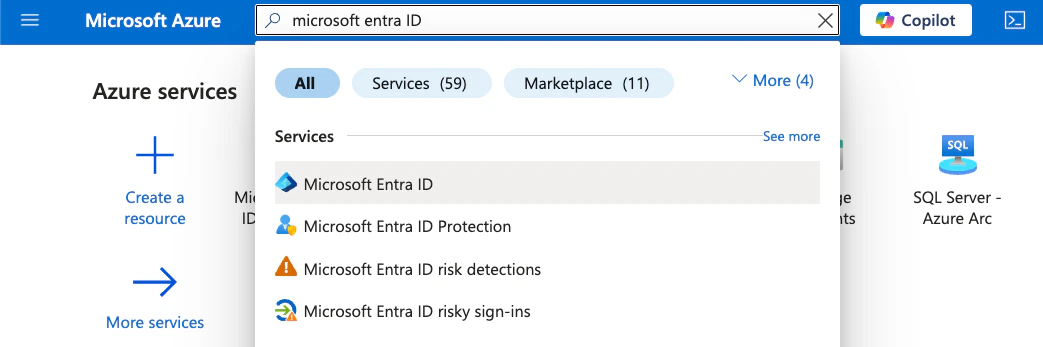
a. Register an application- Sign in to the Azure Portal and search for Microsoft Entra ID.
- In the left menu open Manage → App registrations.
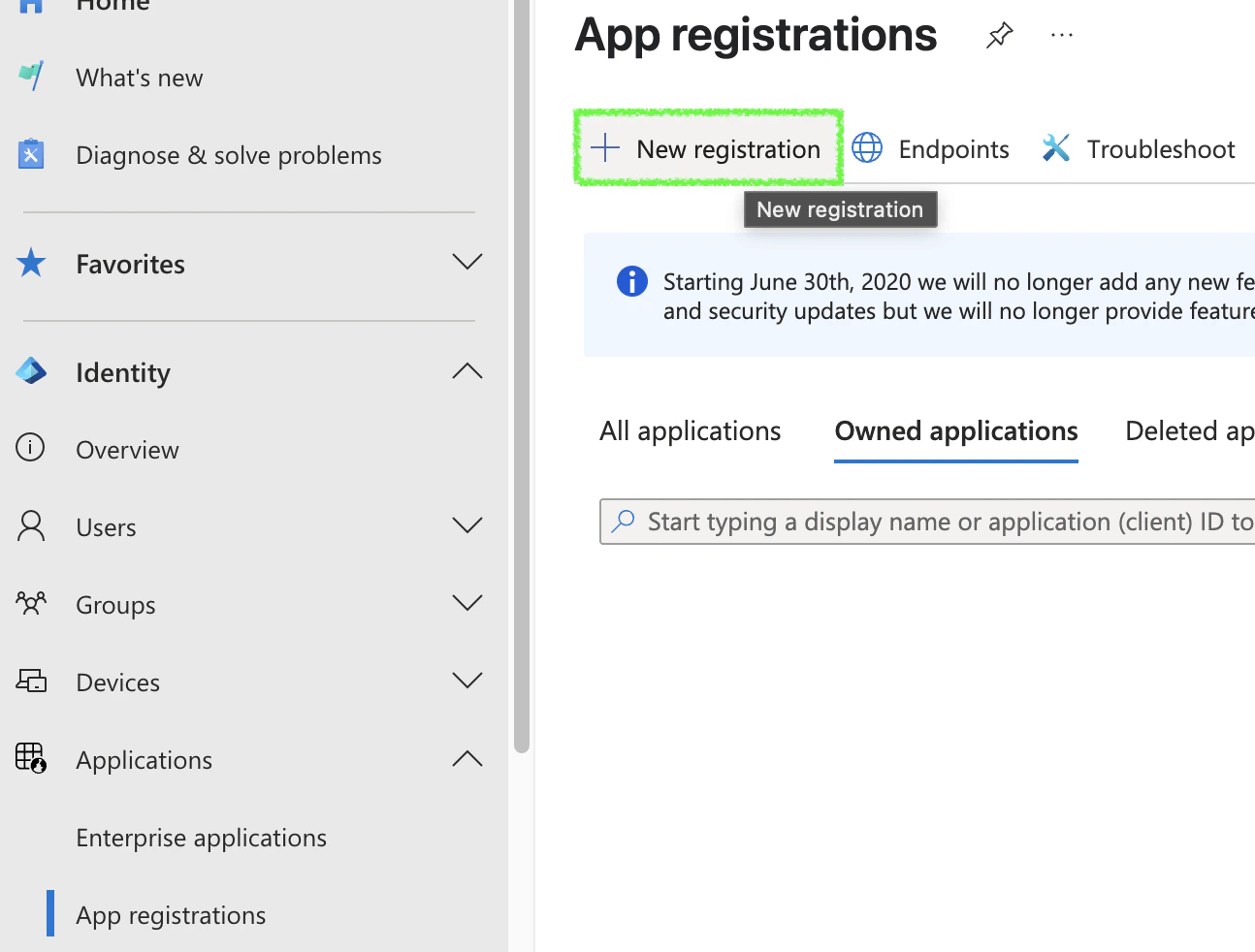
- Click + New registration, give it a name (e.g.
codeant-cspm), leave the defaults, and click Register.
- From the new app registration open Certificates & secrets.
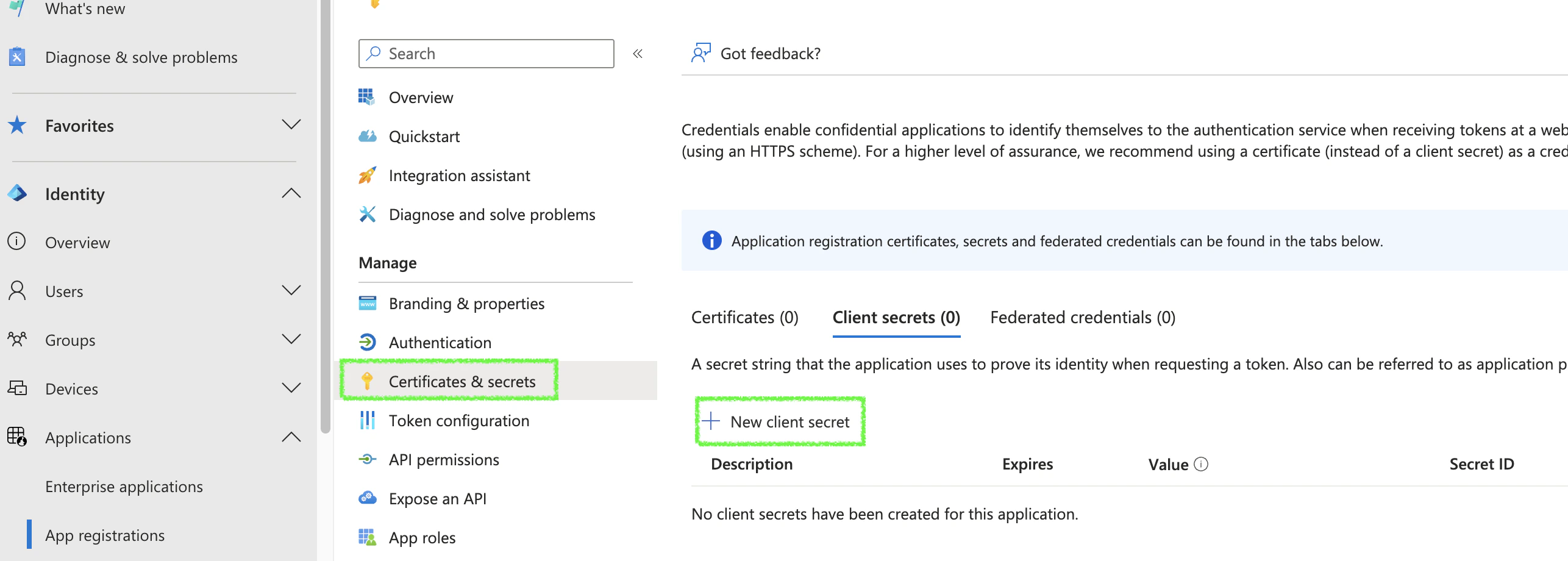
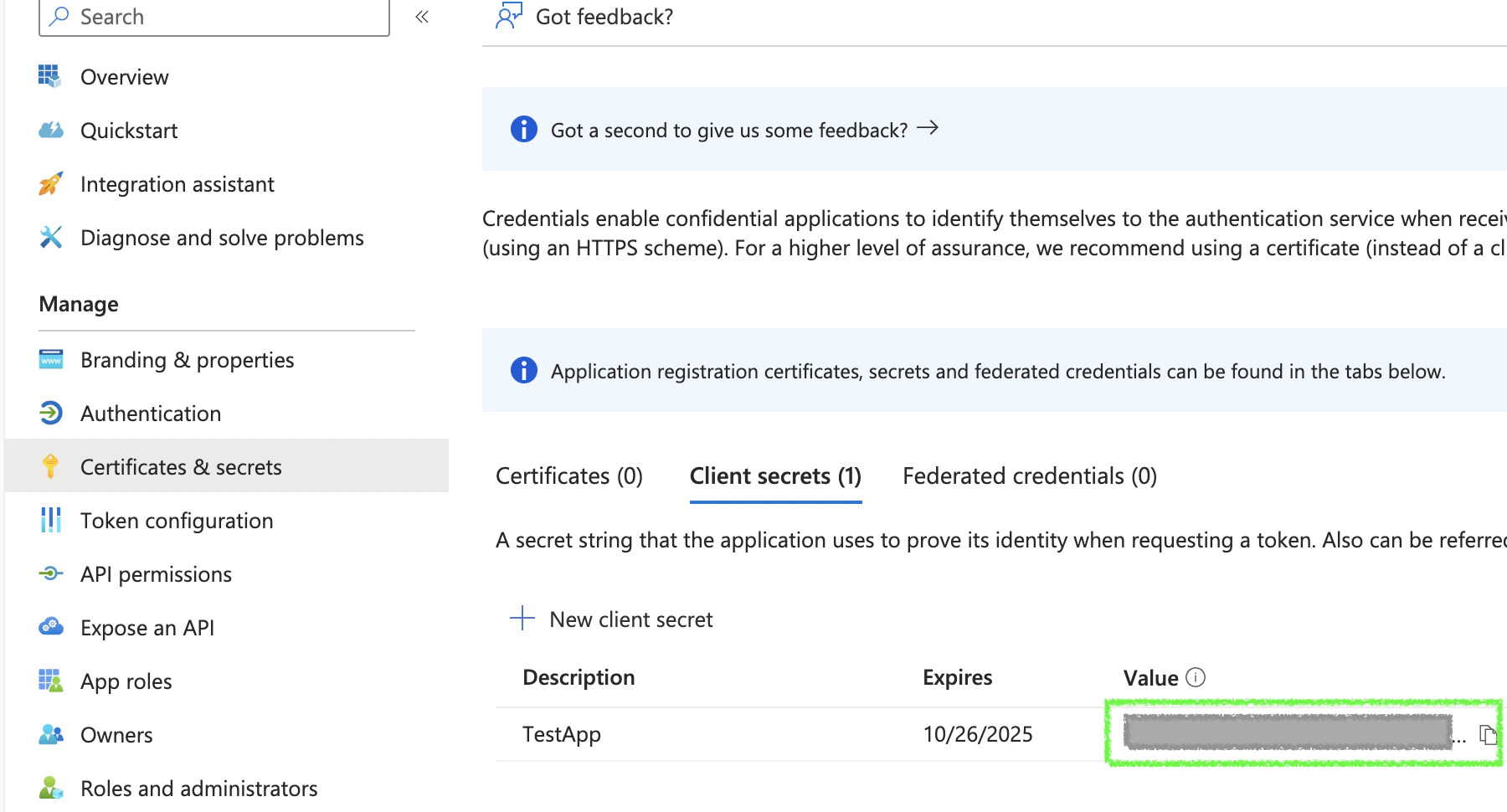
- Click + New client secret, set an expiry, and click Add. Copy the secret Value immediately - it is only shown once.
- In the same app registration open API permissions.
- Click + Add a permission, choose Microsoft Graph, then Application permissions.
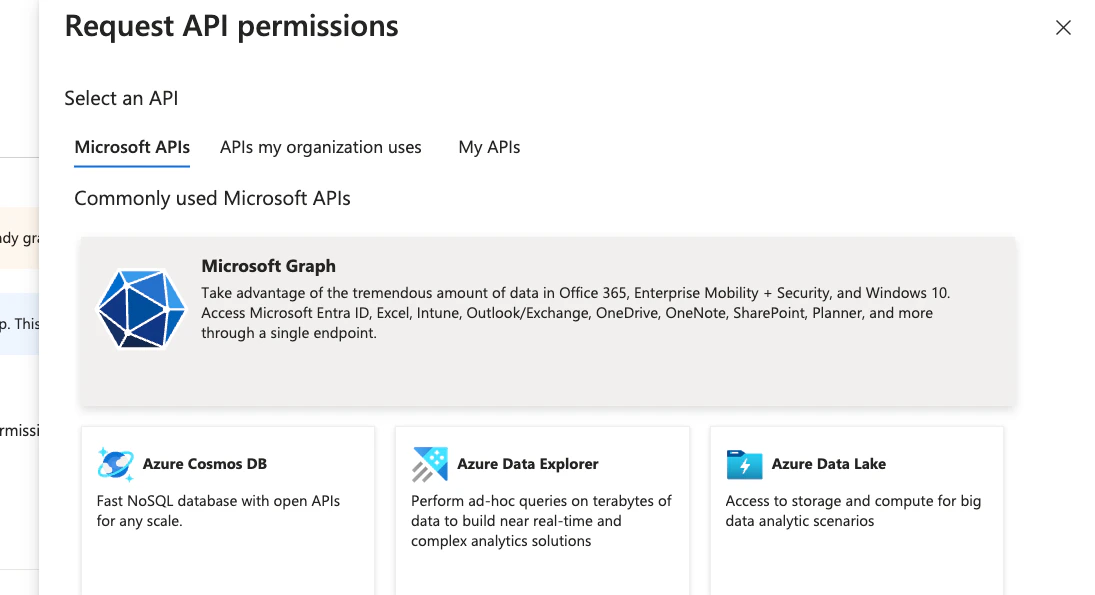
- Search for and tick:
AuditLog.Read.All,Directory.Read.All,Policy.Read.All. Click Add permissions.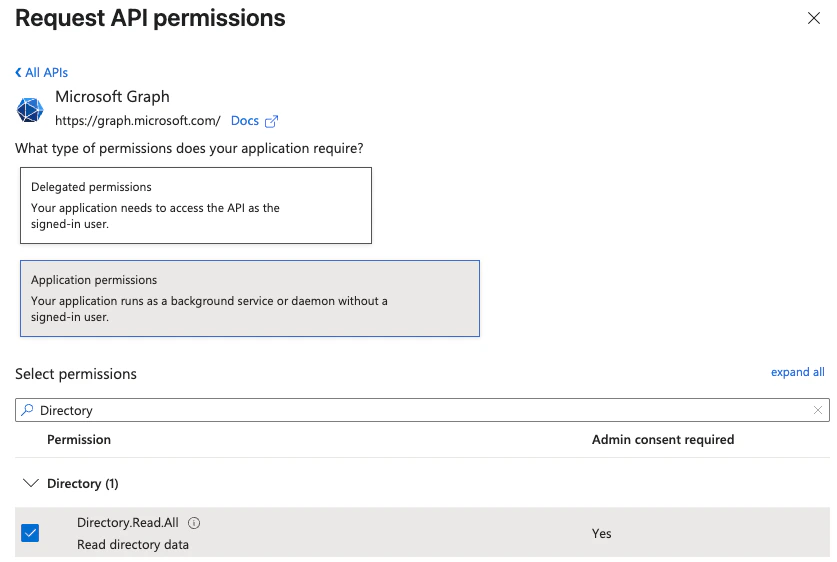
- Click Grant admin consent for <tenant>, then Yes. Each permission’s status should turn green.
- In the Azure Portal top search bar, type Subscriptions and click the Subscriptions result under Services.
- From the list, click the subscription you want CodeAnt to scan. (If you have many subscriptions, repeat this step for each one.)
- In the left menu of the subscription blade, click Access control (IAM).
- Click + Add at the top of the page, then choose Add role assignment from the dropdown.
- On the Role tab, search for
Reader, select the Reader row, and click Next.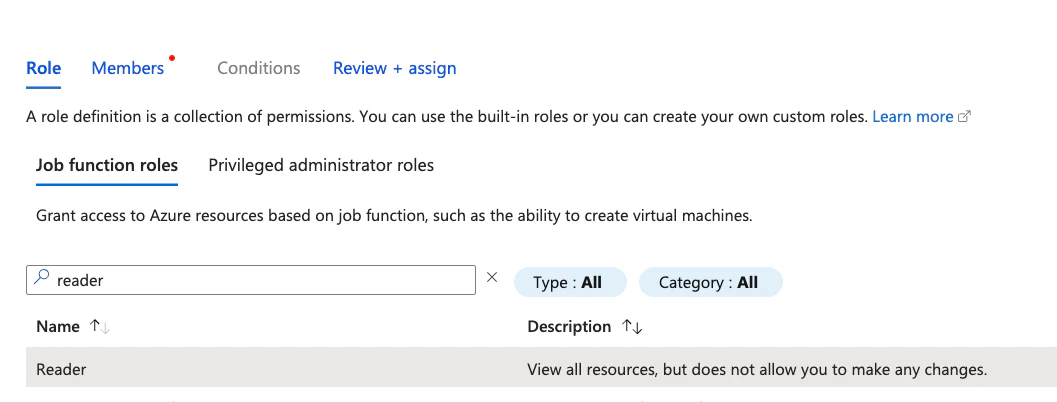
- On the Members tab, leave Assign access to as User, group, or service principal, then click + Select members.
- In the Select members panel on the right, type
codeant-cspm(or the exact name you used in step a.3) into the search box, click the matching application in the results, and click Select at the bottom. - Click Next until you reach the Review + assign tab, then click Review + assign to commit.
-
Settings
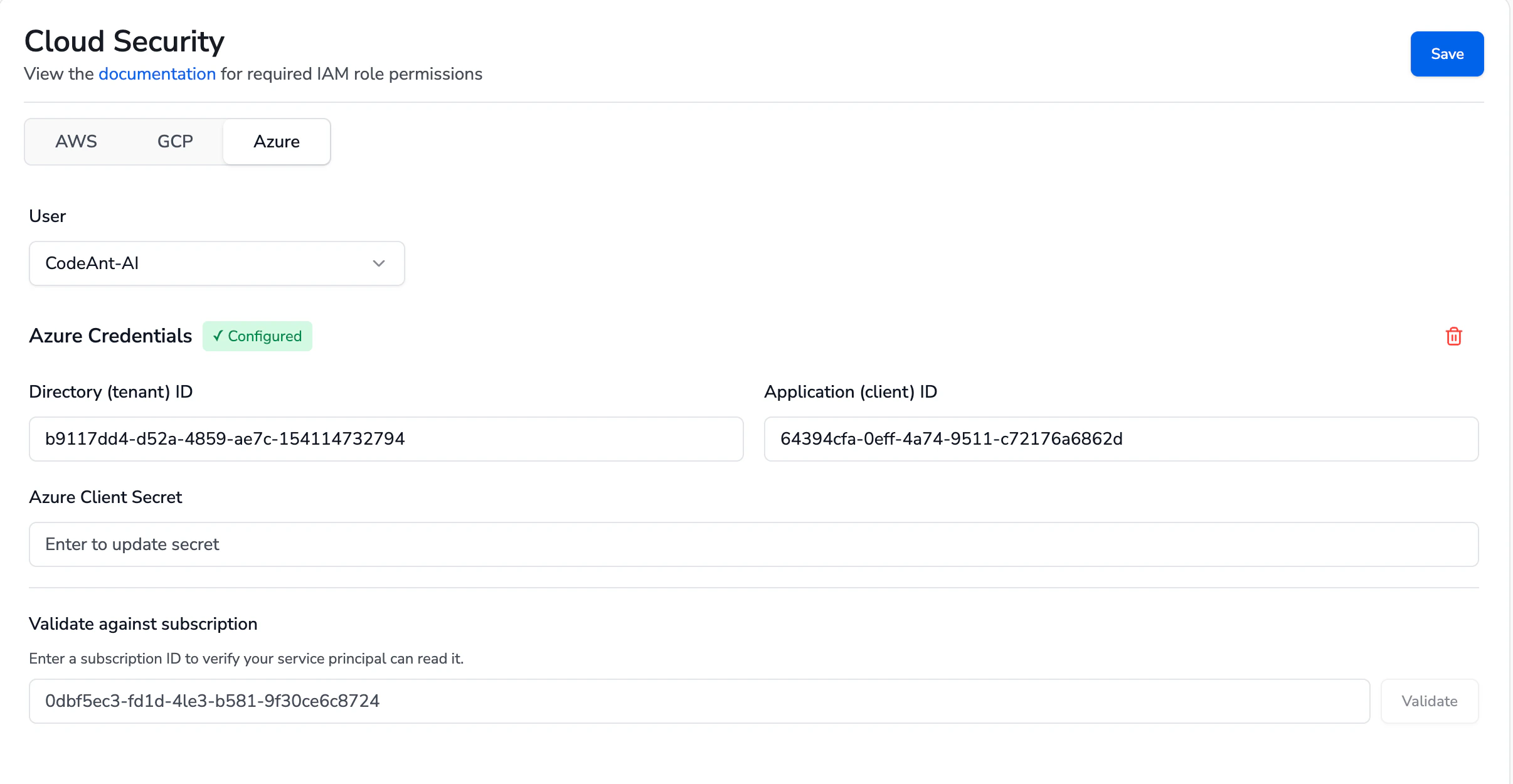
- In the CodeAnt UI navigate to Settings → Cloud Security → Azure.
- Under Azure Credentials, fill in Directory (tenant) ID, Application (client) ID, and Azure Client Secret, then click Save in the top right.
- (Optional) Under Validate against subscription, paste a Subscription ID and click Validate to confirm the service principal can read that subscription. A green confirmation means the Reader role and Graph permissions are wired up correctly. The Subscription ID is not stored - it is only used for this probe.
-
-
Start a Scan
- Go to Cloud Security -> Start a New Scan and pick your Azure connection.
- Within 15-20 minutes, the scan will be completed, and you will see the results.