

Overview
Cloud Security Posture Management (CSPM) is the process of securing multi-cloud environments through enhanced visibility, risk and misconfiguration identification, posture assessment, and compliance protocols. CodeAnt AI continuously monitors cloud infrastructure - across Infrastructure as a Service (IaaS), Platform as a Service (PaaS), and Software as a Service (SaaS) - for gaps in security policy enforcement.Key Features
- Multi-Cloud Support: Currently supports AWS, GCP and Azure.
- Seamless Integration: Connect with any cloud provider and continuously monitor for security vulnerabilities, misconfigurations, and compliance issues.
GCP Authentication
CodeAnt’s GCP scanner needs read-only access to the project you want to scan. The recommended way to grant that access is a dedicated service account with a minimal set of roles plus a small custom role for one extra permission the predefined roles don’t cover. At a glance, the service account needs:
You’ll then download a JSON key for the service account and paste it into CodeAnt.
The service account scans the GCP project tied to the credentials. If you want to scan multiple projects, repeat the setup in each project, or attach the same service account at the folder / organization level with the same roles.
1. Create the custom CodeAntRole
The custom role exists only to add a single granular permission that roles/viewer does not include.
-
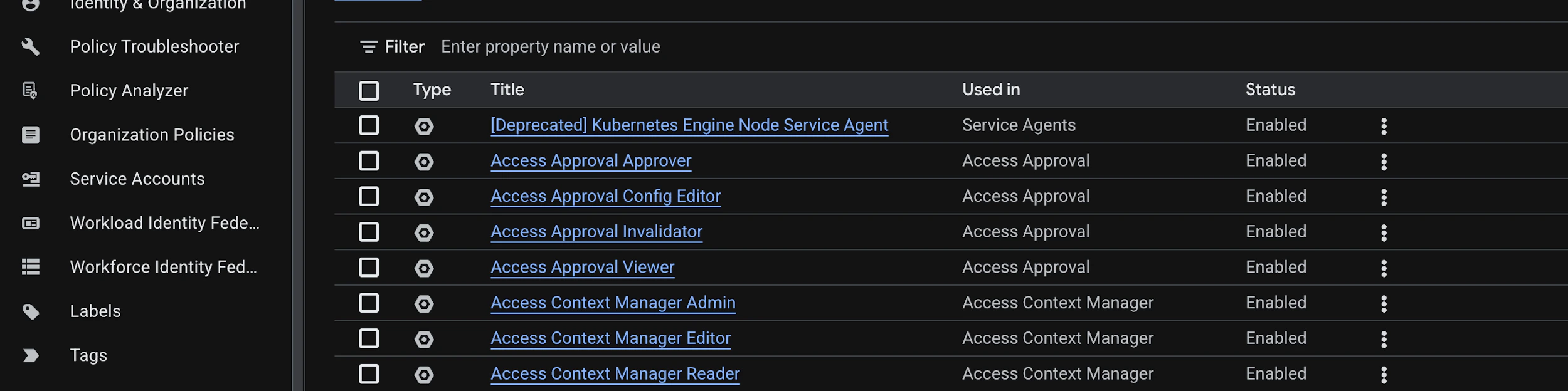
In the Google Cloud Console go to IAM & Admin → Roles and click + Create role.
-
Fill in the role details:
- Title:
CodeAntRole - ID:
codeant_role - Description:
Custom role used by CodeAnt CSPM to read bucket IAM policies. - Role launch stage:
General Availability
- Title:
-
Click + Add permissions, filter the picker by role Storage Admin, find
storage.buckets.getIamPolicy, tick it, and click Add.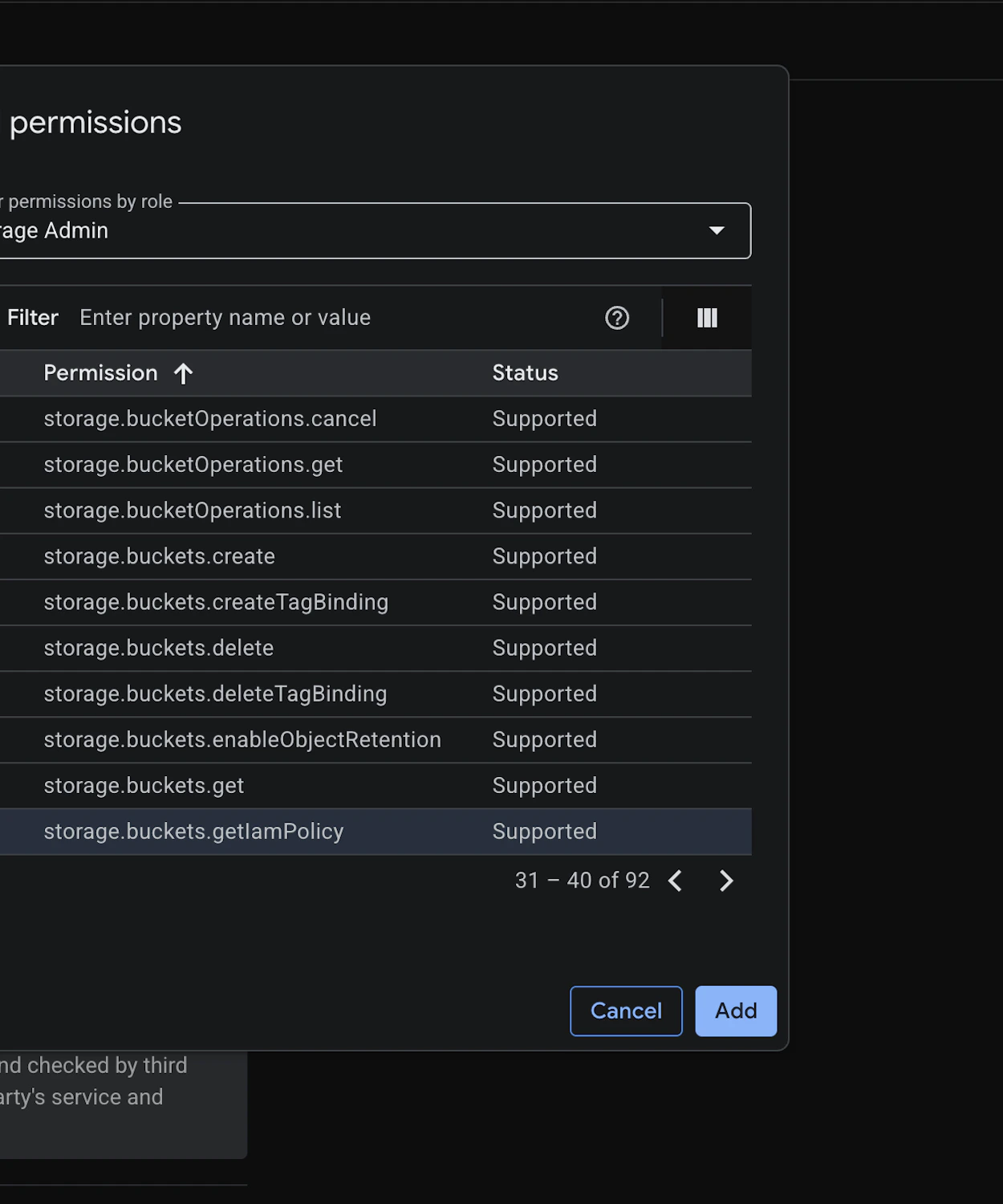
- Click Create to save the role.
2. Create the service account
-
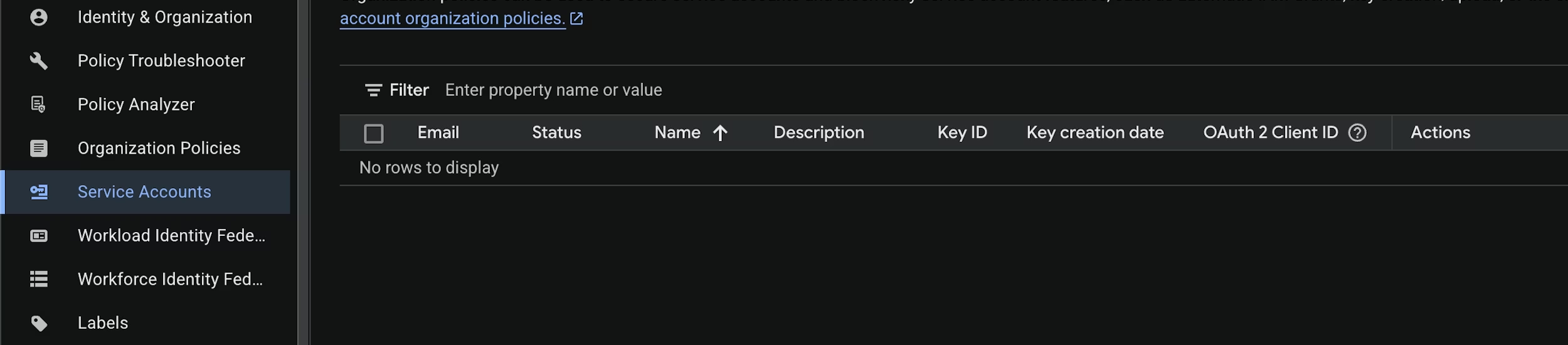
Navigate to IAM & Admin → Service Accounts and click + Create service account.
-
Use these details:
- Service account name:
codeant-cspm - Service account ID:
codeant-cspm(the email becomescodeant-cspm@<project-id>.iam.gserviceaccount.com) - Description:
Service account used by CodeAnt CSPM to scan this project.
- Service account name:
- Click Create and continue to move to the permissions step.
3. Grant the roles
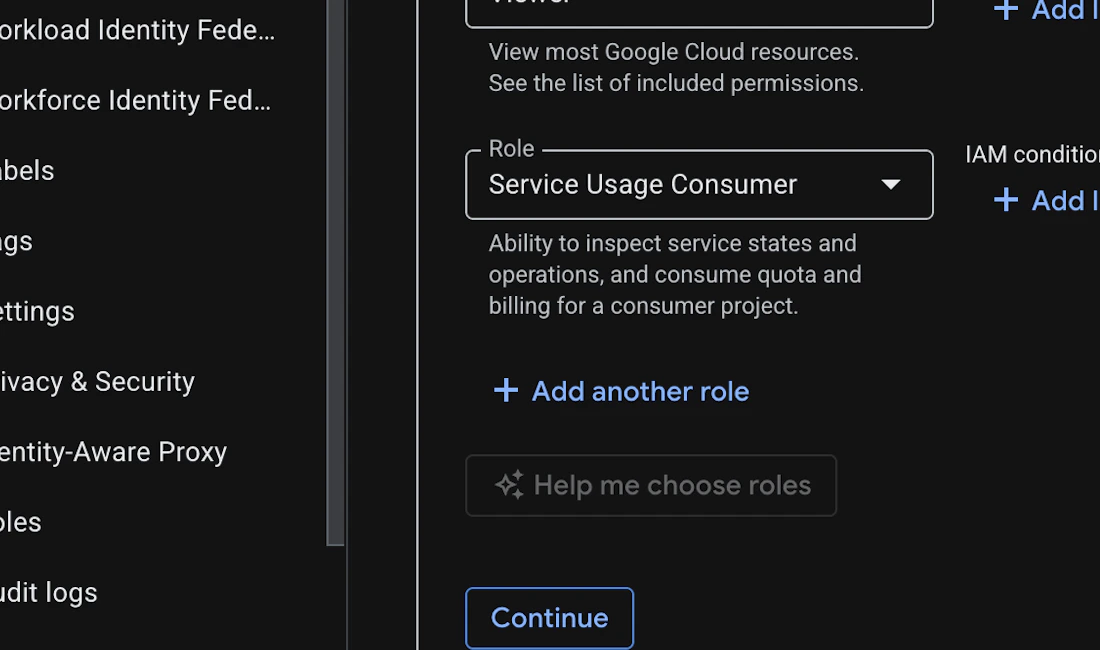
On the Permissions (optional) step, attach all three roles to the service account:CodeAntRoleViewerService Usage Consumer
4. Enable the IAM API and set a quota project
The scanner authenticates against the IAM API and bills quota to the project it scans. From a project that has the IAM API enabled:GOOGLE_CLOUD_QUOTA_PROJECT environment variable instead when running tooling locally.
5. Generate a JSON key
-
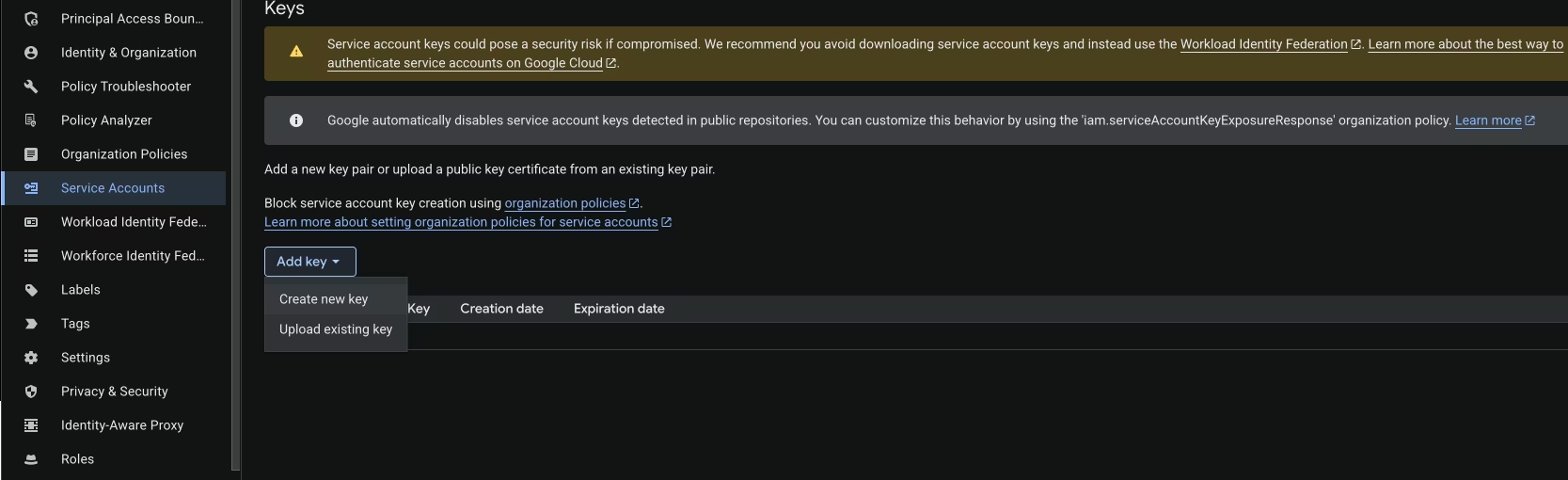
Open the service account you just created, switch to the Keys tab, click Add key → Create new key.
-
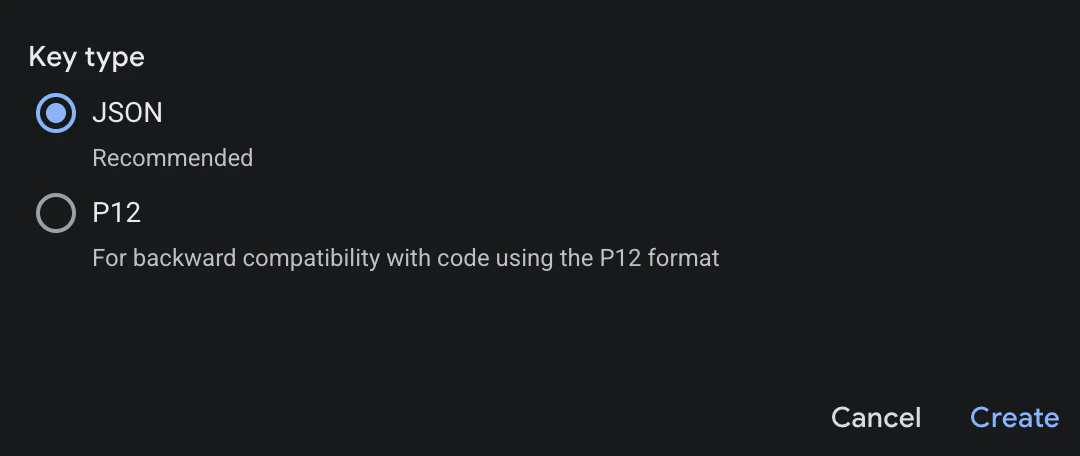
Choose JSON and click Create. The key file is downloaded to your machine - store it somewhere safe; it can’t be re-downloaded.
Connect GCP to CodeAnt
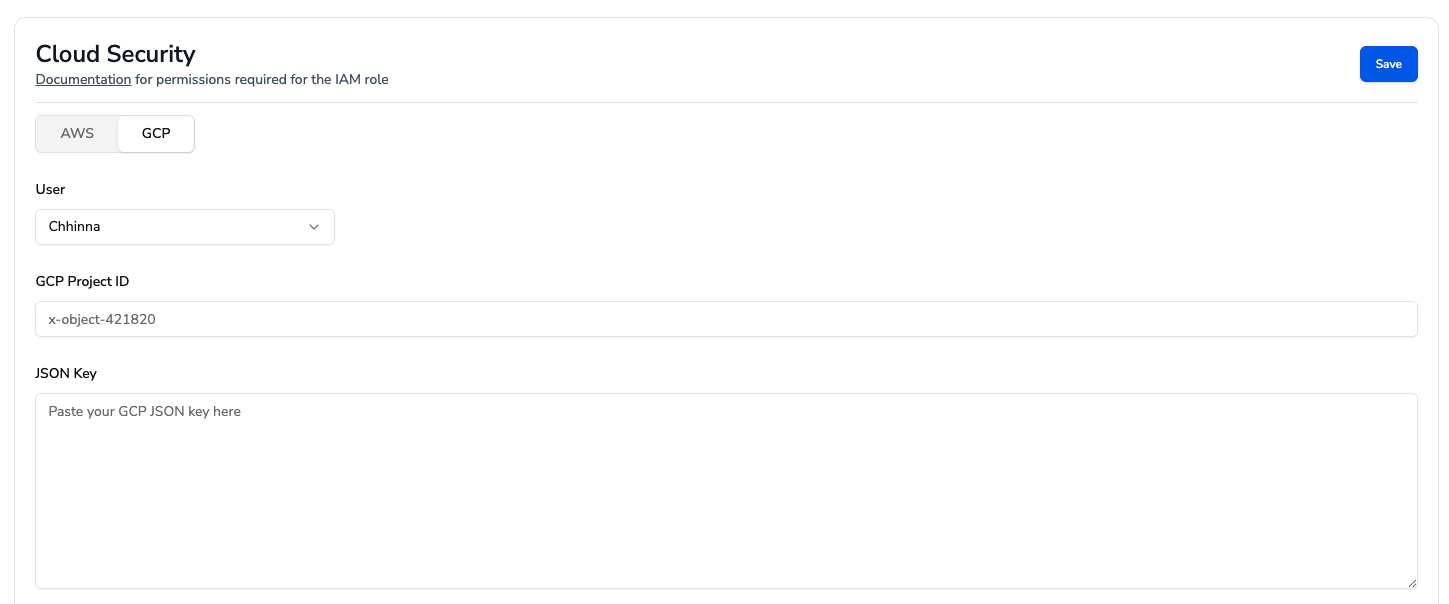
- In the CodeAnt UI, navigate to Settings → Cloud Security Settings → GCP.
-
Enter the Project ID, paste the contents of the JSON key, and click Save.
Start a Scan
- Go to Cloud Security → Start a New Scan and pick your GCP connection.
- Scans typically complete within 15–20 minutes, after which findings appear in the dashboard.