

GCP Authentication
CodeAnt’s GCP scanner needs read-only access to the project you want to scan. The recommended way to grant that access is a dedicated service account with a minimal set of roles plus a small custom role for one extra permission the predefined roles don’t cover. At a glance, the service account needs:
You’ll then download a JSON key for the service account and paste it into CodeAnt.
CodeAnt scans one project per saved credential. To scan multiple projects, grant the service account the same roles in each project (attaching it at the folder or organization level does this in one step), then save each Project ID with its key in CodeAnt.
1. Enable the IAM API
The role and service-account steps below (and the scanner itself) depend on Google’s IAM API. Run this once in Cloud Shell, replacing<your-project-id> with the ID shown in the project picker at the top of the console:
CodeAnt authenticates with the service account’s JSON key, so quota is billed to the key’s own project automatically. You only need
gcloud auth application-default set-quota-project (or the GOOGLE_CLOUD_QUOTA_PROJECT environment variable) when running tooling locally with your own user credentials.2. Create the custom CodeAntRole
The custom role exists only to add a single granular permission that roles/viewer does not include.
-
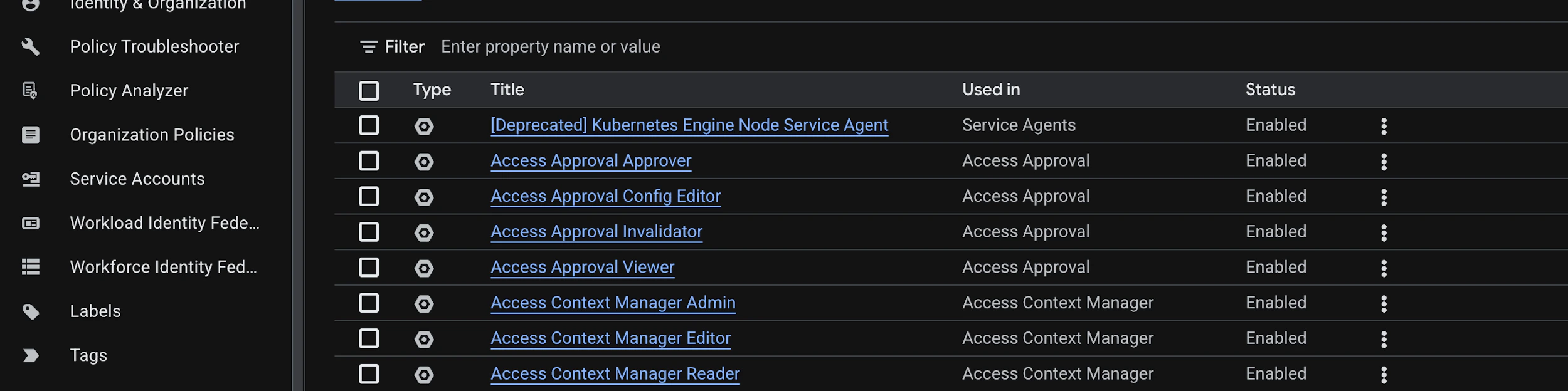
In the Google Cloud Console go to IAM and admin → Roles and click + Create custom role.
-
Fill in the role details:
- Title:
CodeAntRole - ID:
codeant_role - Description:
Custom role used by CodeAnt CSPM to read bucket IAM policies. - Role launch stage:
General Availability
- Title:
-
Click + Add permissions, filter the picker by role Storage Admin, find
storage.buckets.getIamPolicy, tick it, and click Add.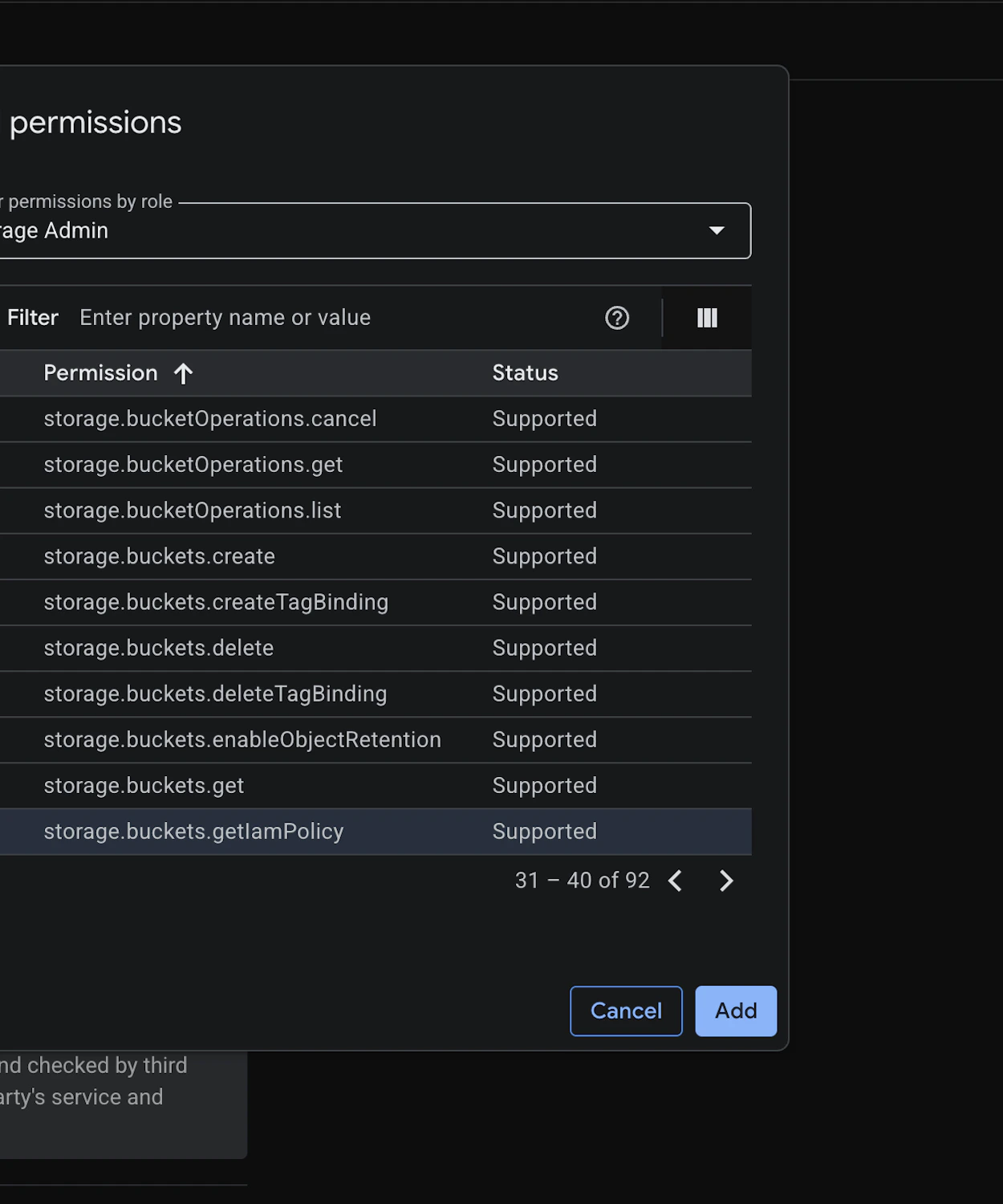
- Click Create to save the role.
3. Create the service account
-
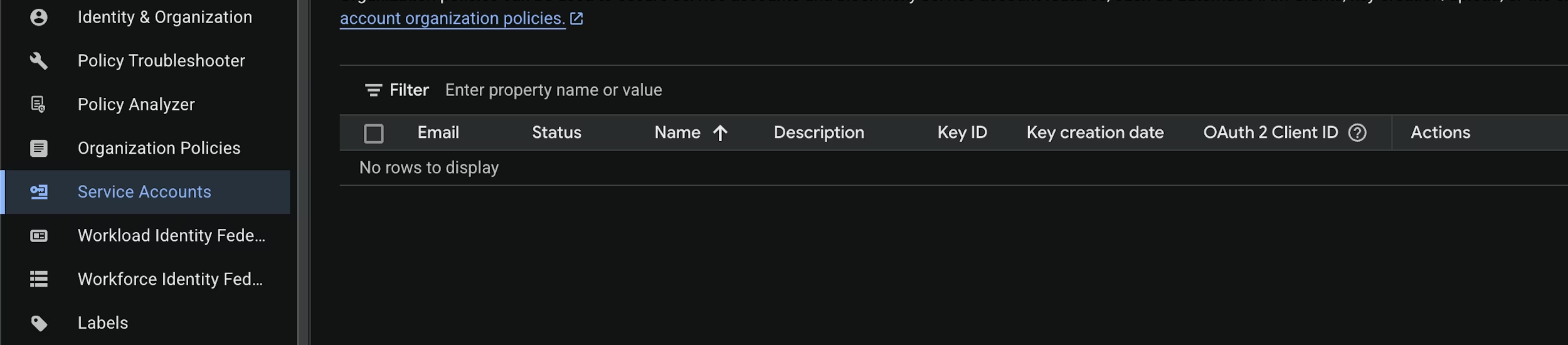
Navigate to IAM and admin → Service accounts and click + Create service account.
-
Use these details:
- Service account name:
codeant-cspm - Service account ID:
codeant-cspm(the email becomescodeant-cspm@<project-id>.iam.gserviceaccount.com) - Description:
Service account used by CodeAnt CSPM to scan this project.
- Service account name:
- Click Create and continue to move to the permissions step.
4. Grant the roles
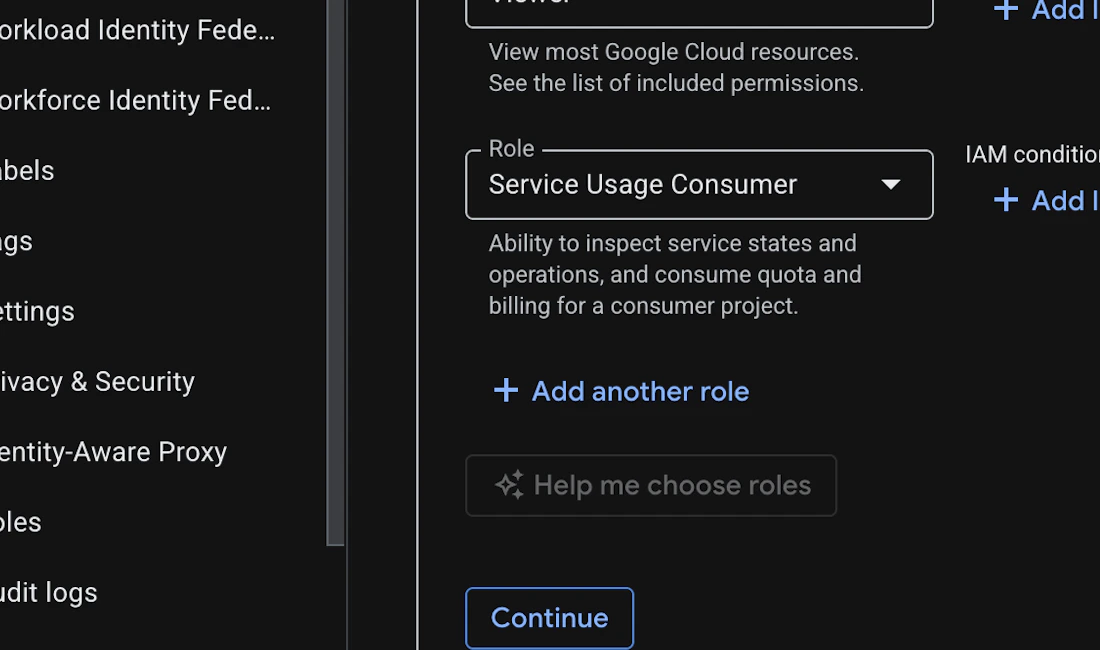
On the Permissions (optional) step, attach all three roles to the service account. Each lives in a different part of the role picker:CodeAntRole- click Select a role, then Quick access → CustomViewer- click + Add another role, then BasicService Usage Consumer- click + Add another role, then type it into the picker’s search box (it is under the Service Usage product)
5. Generate a JSON key
-
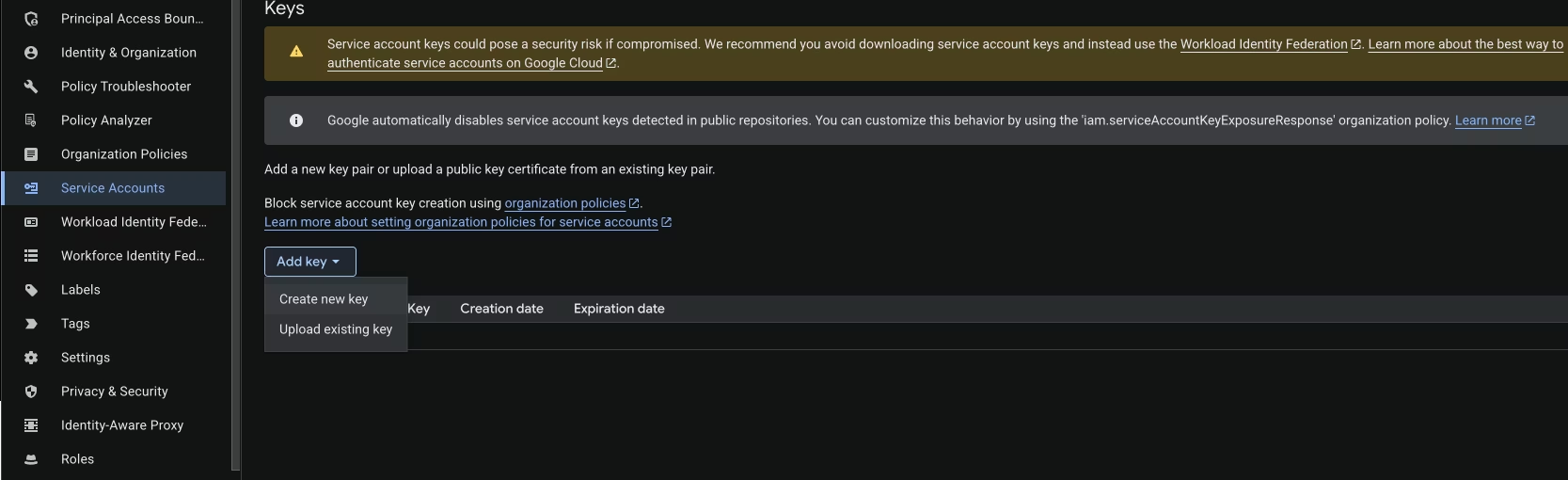
Open the service account you just created, switch to the Keys tab, click Add key → Create new key.
-
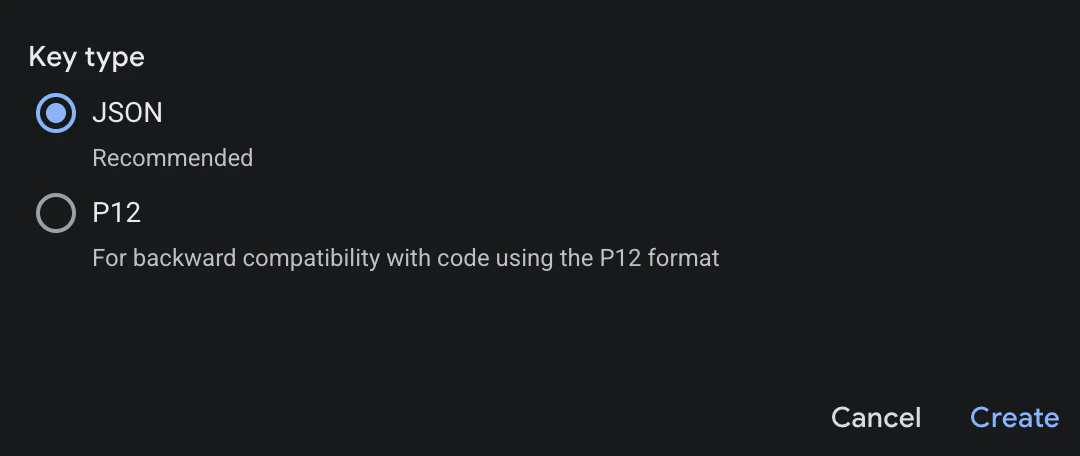
Choose JSON and click Create. The key file is downloaded to your machine - store it somewhere safe; it can’t be re-downloaded.
Connect GCP to CodeAnt
- In the CodeAnt UI, navigate to Settings → Cloud Security → GCP. The setup wizard walks through the same steps as this guide.
-
On the Connect your project step, enter the Project ID, paste the full contents of the JSON key, and click Save.
The Project ID is inside the service account email you just created -
codeant-cspm@<project-id>.iam.gserviceaccount.com. It is also shown in the project picker at the top of the Google Cloud console, next to the project’s display name (the machine-style id, not the name itself).
Start a Scan
- Go to Cloud Security → Start a New Scan and pick your GCP connection.
- Scans typically complete within 15–20 minutes, after which findings appear in the dashboard.
Agentless VM Scanning is not supported for GCP. See VM Scanning for the providers it currently covers.